Prevent Law features for UK organisations - Console
 Updated 2 weeks ago
by
admin
Updated 2 weeks ago
by
admin
In the UK, the Prevent Law or Prevent Duty, is a duty that certain UK organisations (e.g. schools, government, etc) have to prevent people being drawn into terrorism.
To support this, the Web Security product includes a block list of known online terrorist and radicalisation content that is supplied and maintained by the Counter Terrorism Internet Referral Unit (CTIRU). If this option is enabled, requests to websites on this list will be blocked and attempts to access these sites can be viewed in Analytics ⟶ Web Activity.
How to verify if the CTIRU blocklist is enabled
To request the CTIRU blocklist to be enabled or disabled for your account, please contact your service provider.
404 Not Found message will be displayed. If it is inactive, the web site domain will not be resolved due to a server error.
How to report on access to the CTIRU blocklist
To report on attempts to access content in the CTIRU block list use the Web Activity report.
- In the console, go to Analytics and click Web Activity.
- Choose a Timespan (Hour, Day, Week, Month or Custom).
- Click Filters to expand them.
- In the Content group, open the Web Categories drop-down and select the CTIRU category.
- Click Apply Filters, then Run Report.
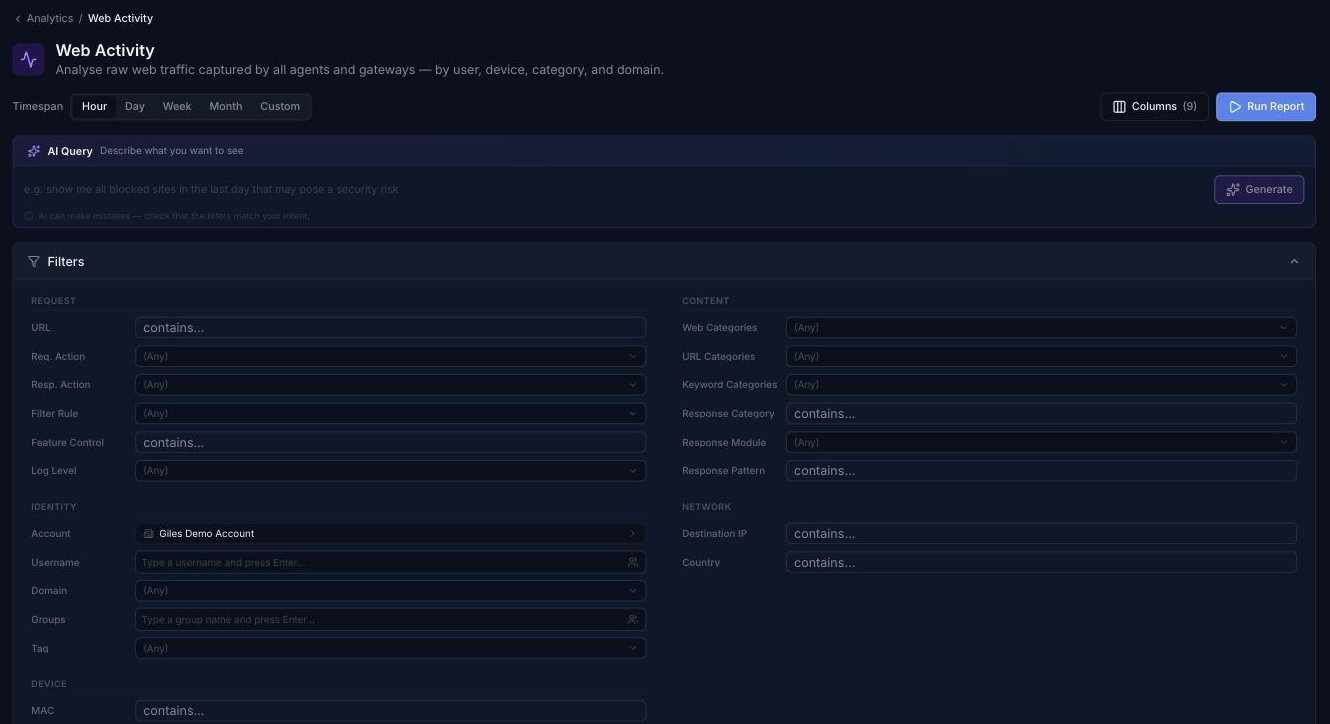
The results will show any requests which matched CTIRU-listed content. You can narrow down your results further by timespan or by additional filters, in the same way as any report.

Scheduling a daily CTIRU alert
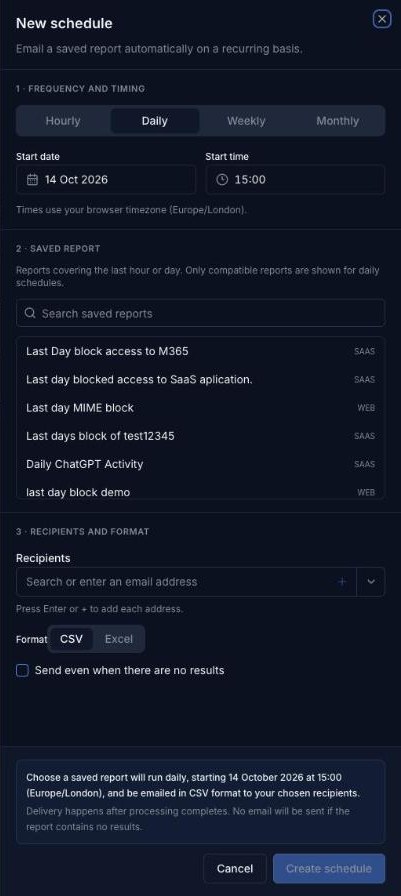
You can have the CTIRU report emailed to you automatically, so you hear about matches without running it yourself.
- Save the CTIRU report as described above, with the Day timespan selected.
- Under Analytics in the left-hand menu, click Scheduler, then click New Schedule.
- Choose Daily and set the Start date and Start time.
- Under Saved report, select your CTIRU report. Only reports covering the last hour or day are shown for daily schedules.
- Add the Recipients and choose CSV or Excel. Leave Send even when there are no results unticked, so an email is only sent when there is a match.
- Check the summary, then click Create schedule.