How to Report Spam and Phishing Emails with the TrustLayer Outlook Add-in
 Updated 3 hours ago
by
admin
This article shows end users how to report spam and phishing emails using the TrustLayer add-in for Outlook. Reported emails are sent to the TrustLayer Email Security team for review and help improve filtering for your organisation.
Opening the TrustLayer add-in
Select an email so it opens in the reading pane, then open the add-in for your version of Outlook.
Outlook on the web and the new Outlook for Windows
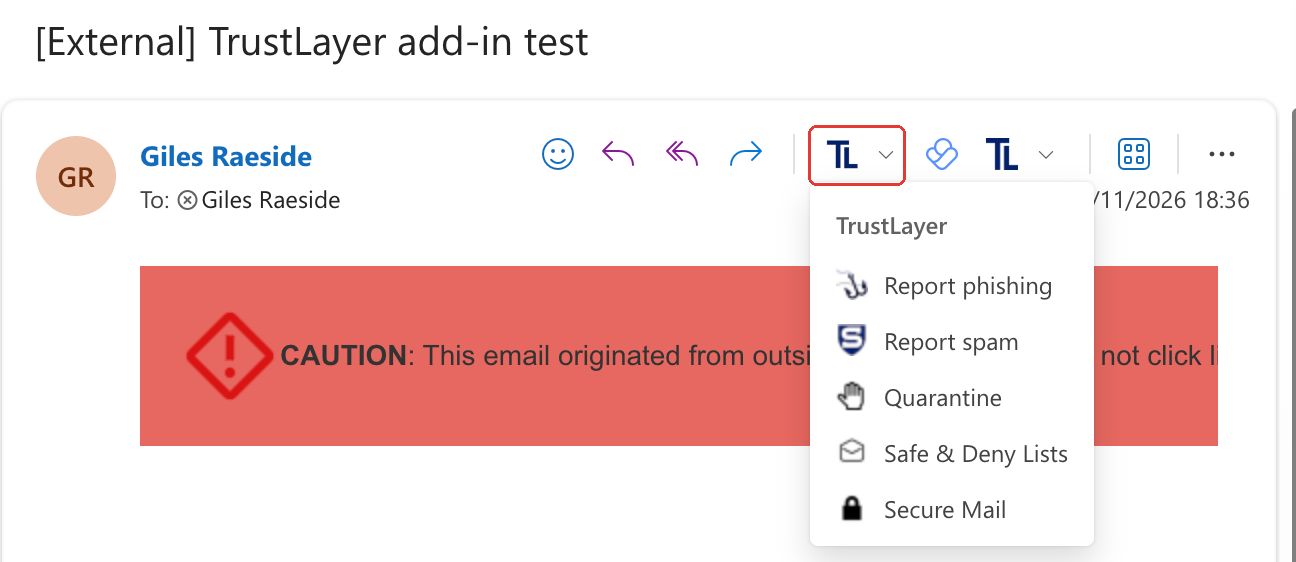
The TrustLayer (TL) button appears on the ribbon and in the toolbar on the email itself, next to Reply, Reply all and Forward.

Click the arrow next to the TrustLayer button to open the menu:
Outlook for Mac
The add-in appears as two buttons in the toolbar. The reading pane must be turned on (View > Reading Pane > Right or Below) for them to become available.
- Report Email: Report phishing and Report spam.
- Email Security: Quarantine, Safe & Deny Lists and Secure Mail.


Classic Outlook for Windows
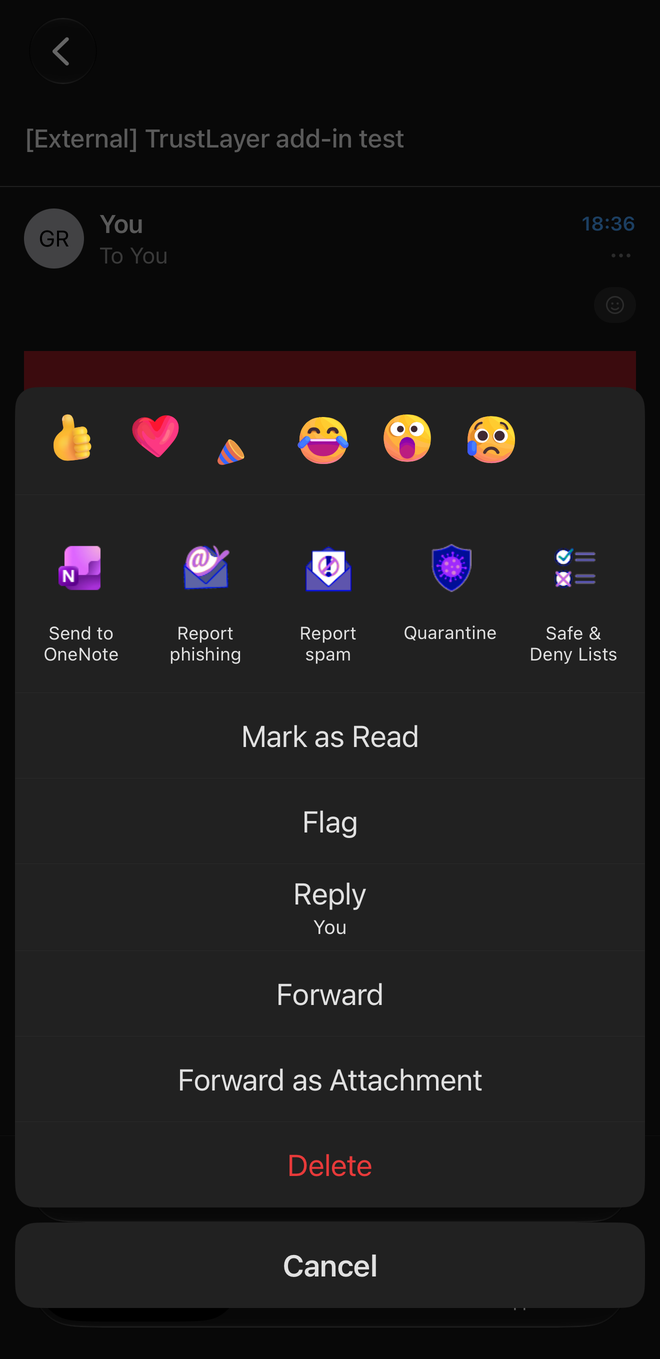
Open the email, then select the TrustLayer tab on the ribbon. The buttons are in two groups:
- Report Email: Report phishing and Report spam.
- Email Security: Quarantine, Safe & Deny Lists and Secure Mail.
Outlook mobile (iPhone and Android)
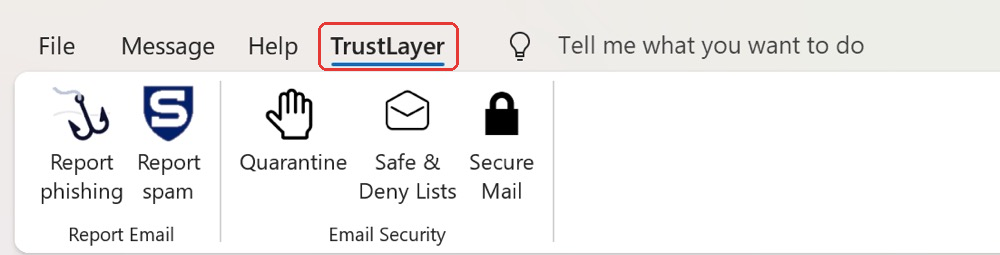
Open the email, then tap ... (More actions) on the message. The TrustLayer actions appear in the row of icons: Report phishing, Report spam, Quarantine, Safe & Deny Lists and Secure Mail. Swipe the row of icons sideways to see Secure Mail and any other options that do not fit on screen.
Report a phishing email
- Select the suspicious email.
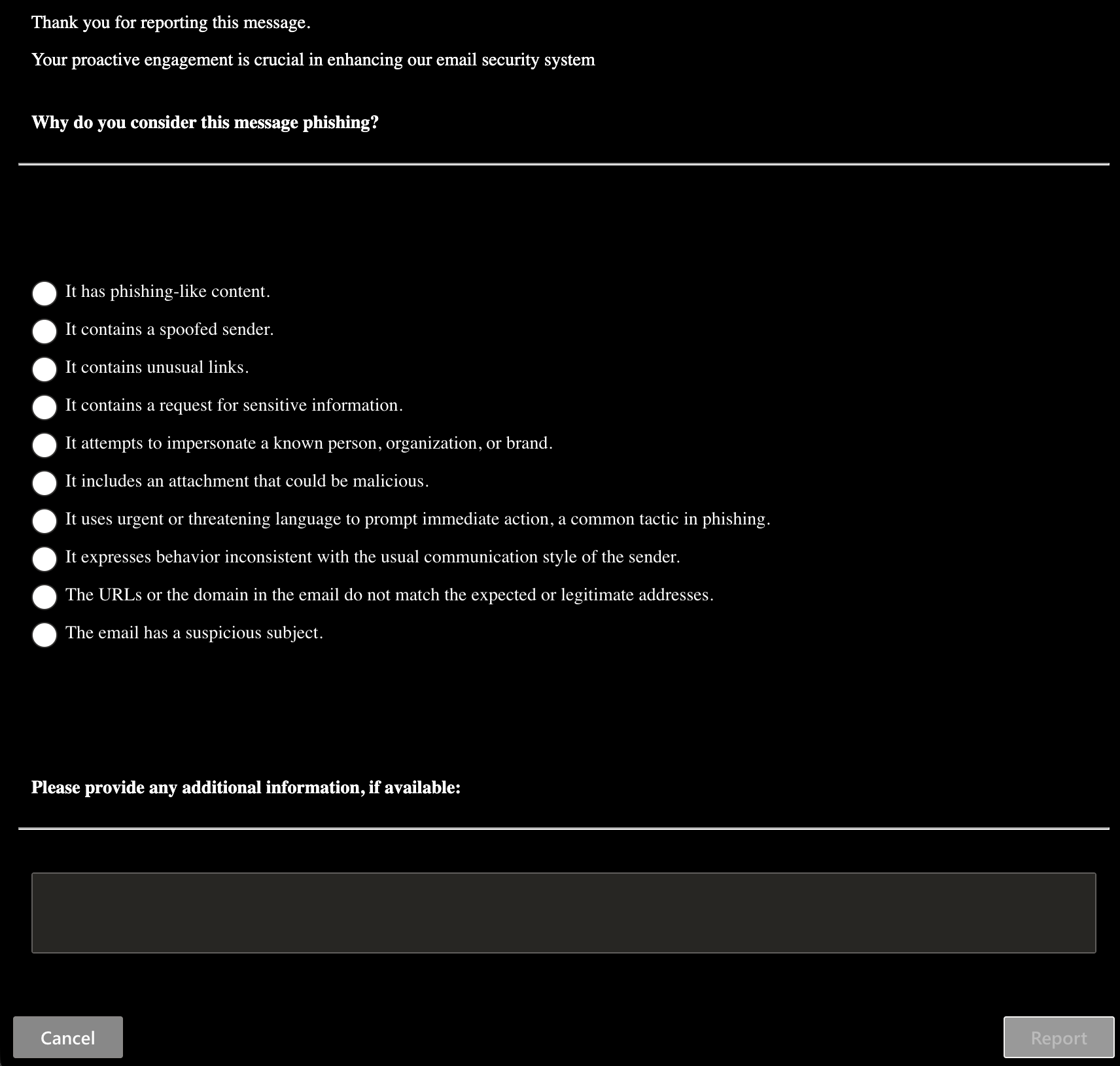
- Open the TrustLayer menu and click Report phishing.
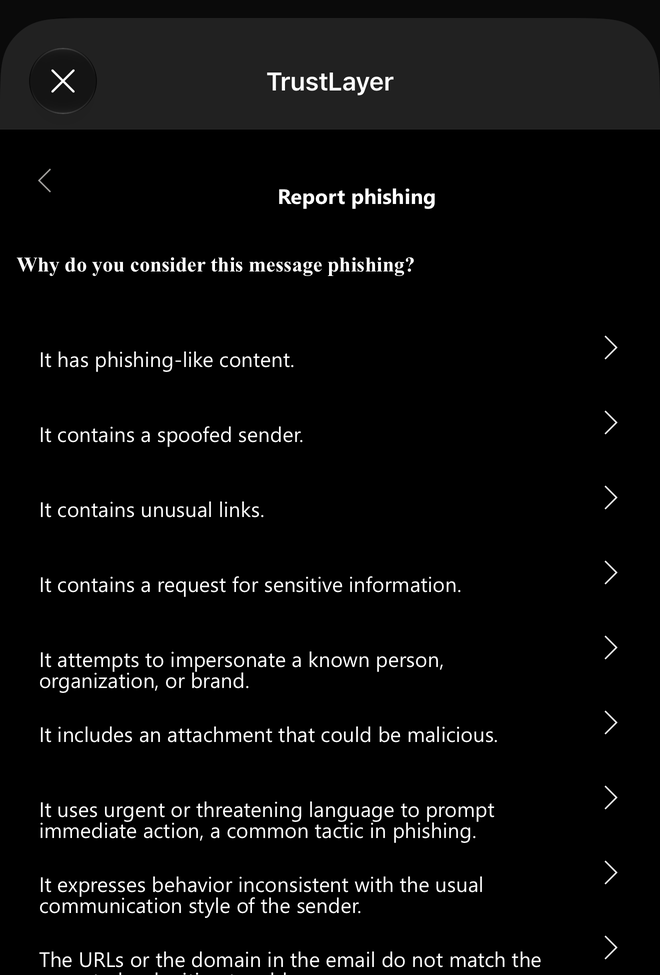
- A Report email window opens. Under Why do you consider this message phishing?, select the reason that best fits, for example a spoofed sender, unusual links or a request for sensitive information.
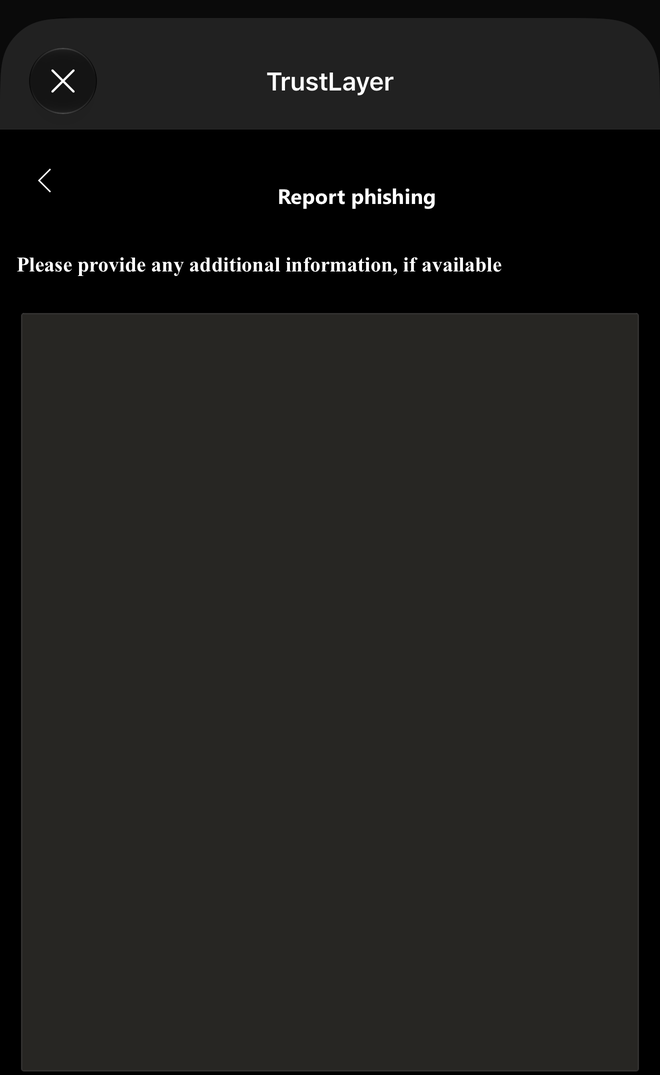
- Optionally, add any further detail in the additional information box.
- Click Report.
Report a spam email
- Select the unwanted email.
- Open the TrustLayer menu and click Report spam.
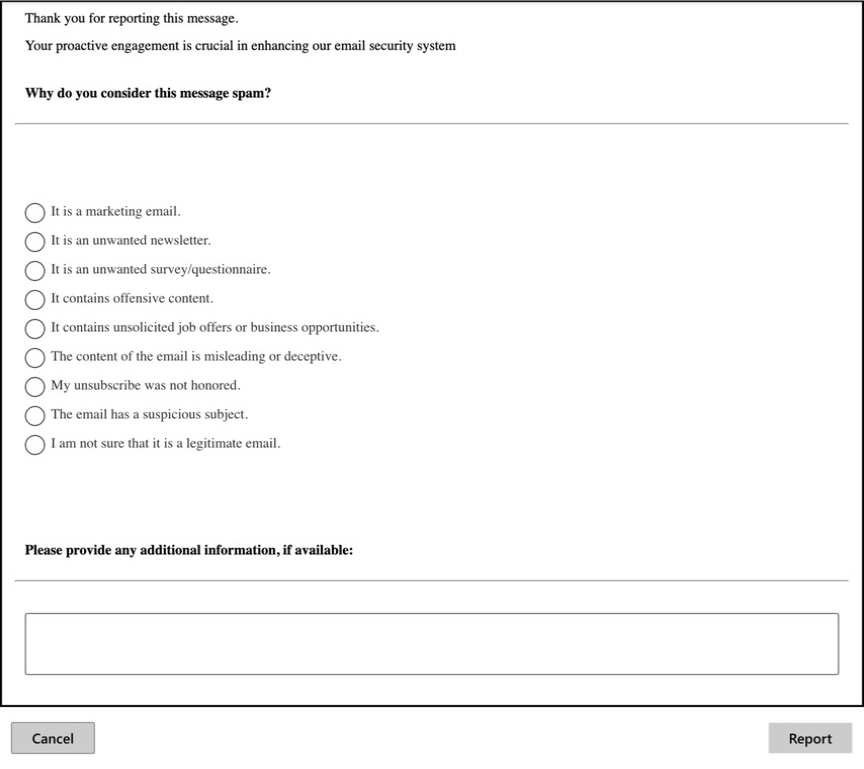
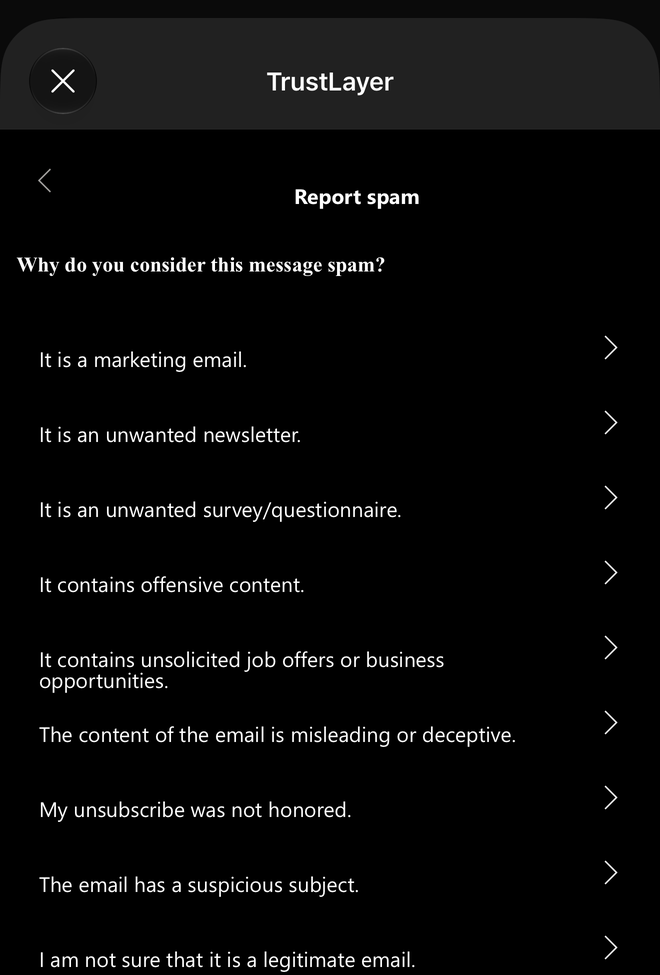
- Under Why do you consider this message spam?, select the reason that best fits, for example a marketing email, an unwanted newsletter or an unsubscribe that was not honoured.
- Optionally, add any further detail, then click Report.
Reporting on Outlook mobile
- Open the email and tap ..., then Report phishing or Report spam.
- Tap the reason that best fits.
- Optionally, type any further detail, then tap Report.
The spam reasons are shown the same way:
What happens next
After you click Report, the window or panel closes and the email is removed from your inbox. No confirmation message is shown, so you do not need to report the email again.
Related articles
- Using the TrustLayer Outlook Add-in: Quarantine, Safe & Deny Lists and SecureMail.
- Installing the Outlook add-in for Email Security