WS & CASB - Blocking All AI Sites Except ChatGPT for Company Accounts - Console
 Updated 2 weeks ago
by
admin
Updated 2 weeks ago
by
admin
This policy blocks every known AI application categorised in the A.I. & M.L. web category, while still allowing ChatGPT, but only when the person logging in uses a company/work email account. It is built from three rules working together across Web Security and CASB in the Rule Builder. Their order matters: rules are processed top to bottom by priority, and the first rule that matches a request wins. A rule with a lower priority number is always evaluated before one with a higher number that might otherwise let the same traffic through.
How the Three Rules Work Together
Priority | Rule | Product | Action |
1 | Block ChatGPT/OpenAI login from non-company accounts | CASB | Block |
2 | Allow the specific URLs ChatGPT uses | Web Security (Custom URL) | Allow (+ Content Scan) |
3 | Block the A.I. & M.L. category | Web Security | Block |
Because Priority 1 runs first, a non-company login to ChatGPT is blocked before the Priority 2 allow rule can let it through. Priority 2 then permits the ChatGPT domains for everyone else, and Priority 3 catches every other AI/ML site that isn't explicitly allowed.
Rule 1 (Priority 1): CASB, block ChatGPT login for non-company accounts
This uses the same Keyword Category + Specific SaaS pattern as blocking Microsoft Online logins to non-company domains, applied to OpenAI instead of Microsoft.
Step 1: Create the Keyword Category
- Go to Browse ⟶ Categories and open the Keywords tab.
- Click Add Category and enter:
- Name:
Allowed ChatGPT Login – Company Domain - Match Logic:
Match Any - Content Match:
URL & App Action
- Name:
- Click the green + to save.

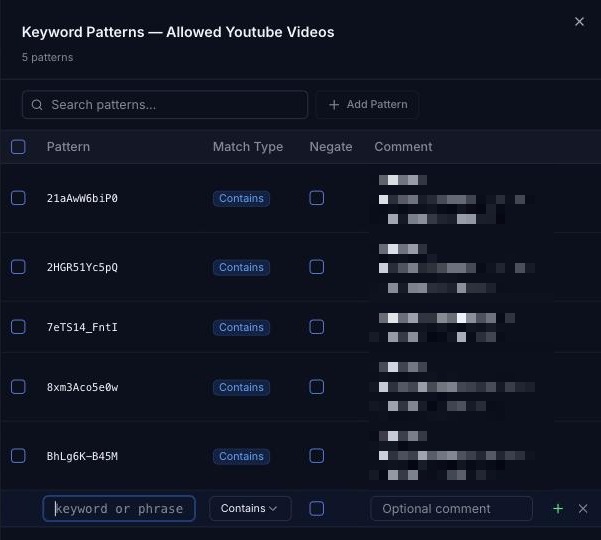
- Click the settings icon on the new category's row, click Add Pattern and enter:
- Pattern:
@companydomain - Match Type:
Contains - Comment:
Matches company email domain
- Pattern:
- Click the green + to save the pattern.
Step 2: Create the rule
- Go to Browse ⟶ Rule Builder and click Create Rule.
- Name it
Block ChatGPT Login – Non-Company Domain, choose the final action Block and position it at the top of the list. Click Create Rule. - Add the required Condition(s), for example Time.
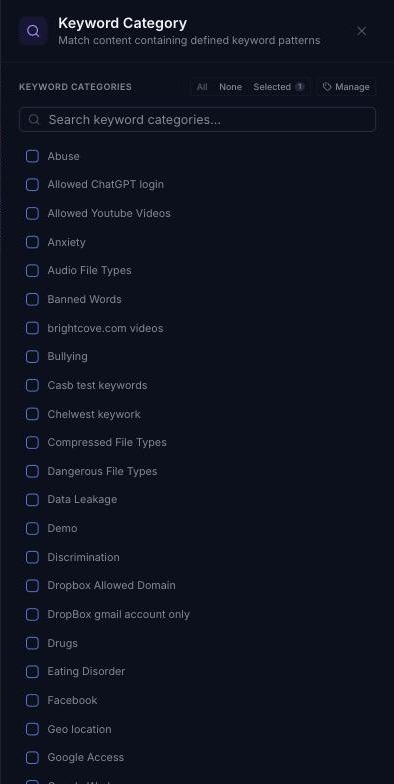
- From the Matches section of the Toolbox, add:
- Keyword Category: tick
Allowed ChatGPT Login – Company Domain, then click Enable inverse match (NOT) so the tile shows a red NOT label. - Specific SaaS: search for
OpenAI(orChatGPT), expand the app, tick Attempted to log in and click Done.
- Keyword Category: tick
- Set the toggle at the top of the Matches column to AND.
- Click the settings icon on the Block action and choose the block page template.
- Make sure the rule is Active (if it shows Inactive, click the badge to activate it), then click Apply Changes.
Rule 2 (Priority 2): Web Security, allow ChatGPT's URLs with Content Scan
This uses a Custom URL category containing the domains ChatGPT needs, matched by an Allow rule. Because an allow rule lets everything through for the matched URLs, add a Content Scan action to the same rule so executables and installers can't be downloaded through it.
Configuration Steps
- Go to Browse ⟶ Categories ⟶ Custom URL and click Add Category. Name it, e.g.
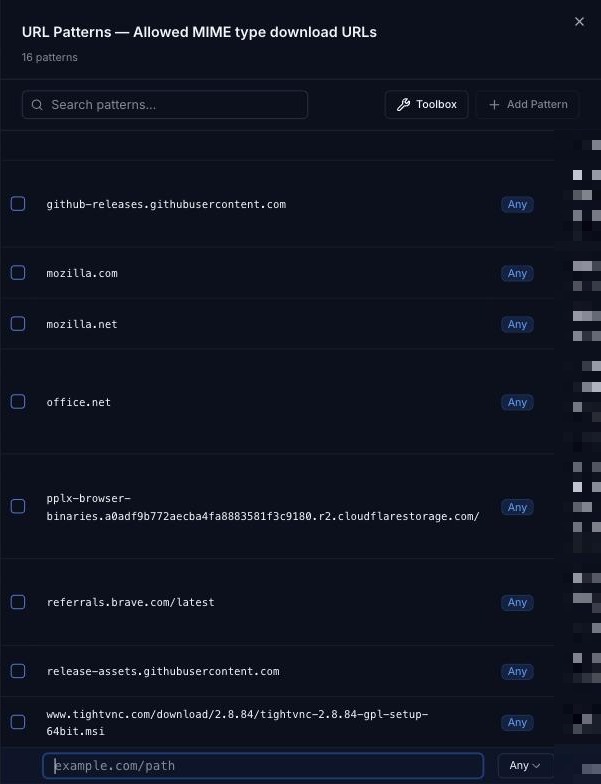
ChatGPT Allowed URLs, and click the green +. - Click the settings icon on the new category's row, then Add Pattern for each domain (protocol Any; don't include the scheme or a query string in the pattern):
chatgpt.comlabs.openai.comoaiusercontent.comopenai.com
- Go to Browse ⟶ Rule Builder and click Create Rule. Name it
Allow ChatGPT URLs, choose the final action Allow and position it after Rule 1. - From the Toolbox, add the Custom URL match and tick the
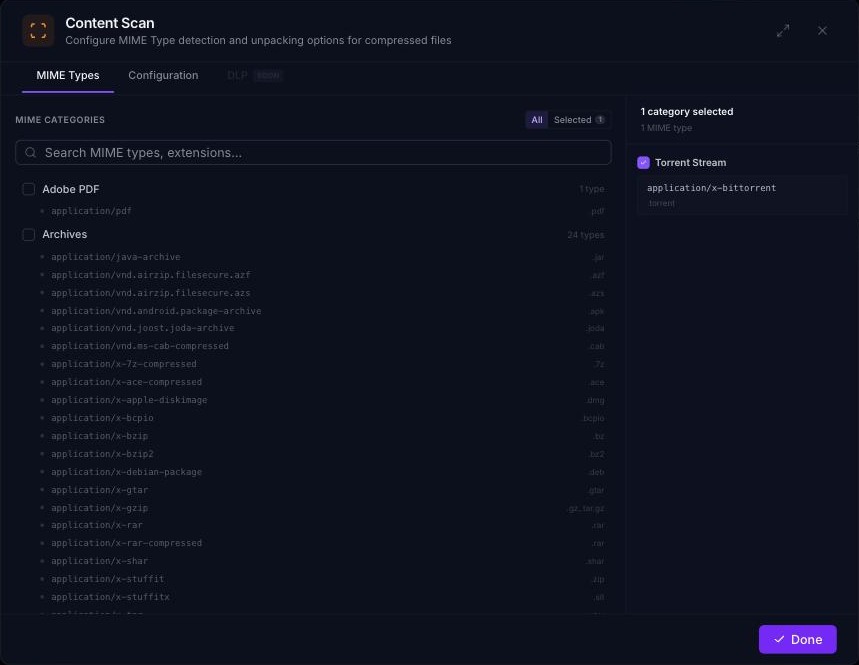
ChatGPT Allowed URLscategory. - Add the Content Scan action. On the MIME Types tab, select the
Executable BinaryandInstallerscategories, so.exe,.com,.msi,.pkg,.xpi,.isoand similar files can't be downloaded through the allowed ChatGPT traffic. On the Configuration tab, choose the block page template. Click Done. - Make sure the rule is Active (if it shows Inactive, click the badge to activate it), then click Apply Changes.
Rule 3 (Priority 3): Web Security, block the A.I. & M.L. category
This is the catch-all: everything in the A.I. & M.L. web category that isn't already allowed by Rule 2 is blocked.
Configuration Steps
- In the Rule Builder, click Create Rule. Name it
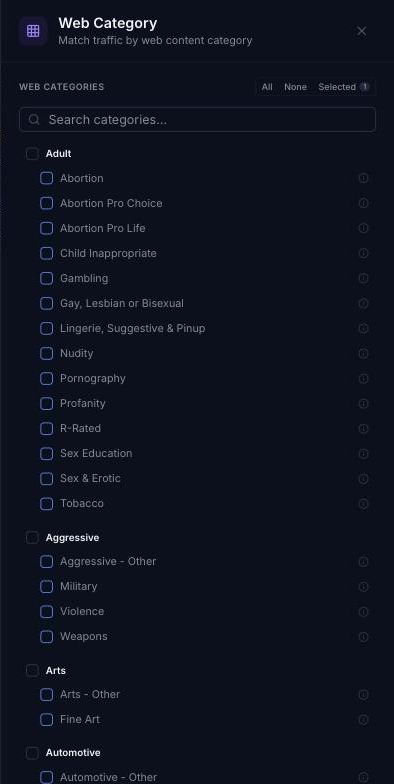
Block A.I. & M.L. Category, choose the final action Block and position it after Rule 2. - Add the Web Category match, search for and tick
A.I. & M.L.. - Click the settings icon on the Block action and choose the block page template.
- Make sure the rule is Active (if it shows Inactive, click the badge to activate it), then click Apply Changes.
Verifying the Policy
In the Rule Builder, the three rules should appear in this order: Rule 1, then Rule 2, then Rule 3.
- Try to log in to ChatGPT with a non-
@companydomainaccount. It should be blocked by Rule 1. - Log in to ChatGPT with a
@companydomainaccount. It should succeed via Rule 2. - Try downloading an
.exeor installer through ChatGPT. It should be blocked by the Content Scan action on Rule 2. - Browse to an unrelated AI/ML site that isn't in the allowed URL list. It should be blocked by Rule 3.
- Check Analytics ⟶ Web Activity and SaaS Activity to confirm each rule is logging matches as expected.
Notes
- Rule order is critical. If the Custom URL allow rule (Priority 2) is ever placed above the CASB login-block rule (Priority 1), non-company ChatGPT logins will be let through before the block rule is evaluated.
- Check the exact OpenAI/ChatGPT app names in the SaaS Catalog. ChatGPT appears as more than one app:
ChatGPT,ChatGPT Business/EnterpriseandChatGPT (.org). - As best practice, add a Content Scan action blocking at least
Executable BinaryandInstallersto every allow rule, not just this one. - If other AI tools need the same "work-account only" treatment, repeat Rules 1 and 2 for each one, keeping every login-block rule above its matching allow rule and above the Priority 3 catch-all.