Settings - Console
 Updated 2 weeks ago
by
admin
Updated 2 weeks ago
by
admin
The Settings page lets you change the details of your account profile, see your account settings and choose the level of access your Service Provider has to your account.
In the console, click Settings (the cog icon at the bottom of the left-hand menu) and open the General tab. The Licenses, Branding and Notifications tabs are covered in Licenses, Branding and Notifications.
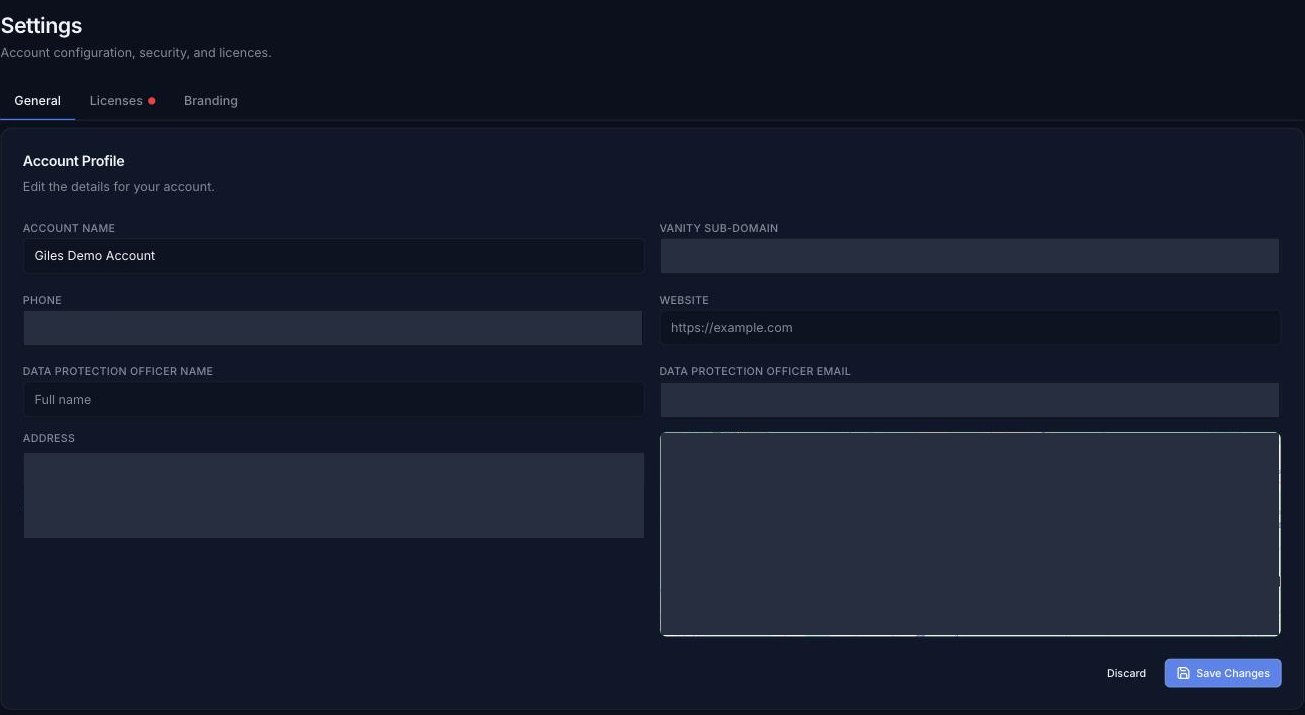
Account Profile
Use this section to change the details associated with your account: Account Name, Vanity Sub-domain, Phone, Website, Data Protection Officer Name and Data Protection Officer Email, and Address. Start typing the address to search for it; the location is shown on the map. Click Save Changes to save, or Discard to undo your changes.
Account Settings
Industry
The industry in which you operate. This value is set during account creation, and cannot be changed.
Support Level
The level of technical support currently allocated to this account. To change your level of support, please contact your Service Provider.
Onboarding Date
The date the account was created.
Provisioning
If your account can provision child accounts, this section shows the provisioning limits set by your Service Provider, such as the Maximum Trial Length, whether NFR Licenses (Not For Resale) are enabled, the number of NFR Licenses Per Product, the Maximum NFR License Length and whether Perpetual Licenses are enabled. To change these, please contact your Service Provider.
Access Control
Use the Access Control section to decide what account access to grant your Service Provider.
Manage Account
Whether your Service Provider has management access to this account.
Report Access Level
Choose how much report data your Service Provider can see:
- None: your Service Provider cannot view report data.
- Redacted: your Service Provider can view reports with sensitive details hidden.
- Full details: your Service Provider can view complete report data.
Session
Shows the Username and Role you are signed in with, and the Session Timeout.