WS & CASB - Blocking All AI Sites Except ChatGPT for Company Accounts
 Updated 2 months ago
by
admin
Updated 2 months ago
by
admin
This policy blocks every known AI application thats be catogrised with in the A.I & M.L Web Category, while still allowing ChatGPT to be used — but only when the person logging in is using a company/work email account. It's built from three rules working together across Web Security and CASB, and the order they run in matters: rules are processed top to bottom by Priority, and the first rule that matches a request wins — so a lower Priority number must always be evaluated before a higher one that would otherwise let the same traffic through.
How the Three Rules Work Together
Priority | Rule | Product | Action |
1 | Block Microsoft/OpenAI-style login to ChatGPT from non-company accounts | CASB | Block |
2 | Allow the specific URLs ChatGPT uses | Web Security (Custom URL) | Allow (+ MIME Type blocking) |
3 | Block the A.I & M.L category | Web Security | Block |
Because Priority 1 runs first, a non-company login attempt to ChatGPT is blocked before the Priority 2 Allow rule ever gets a chance to let that same request through. Priority 2 then permits the specific ChatGPT domains for everyone else, and Priority 3 catches every other AI/ML site that isn't explicitly allowed.
Rule 1 (Priority 1) — CASB: Block ChatGPT Login for Non-Company Accounts
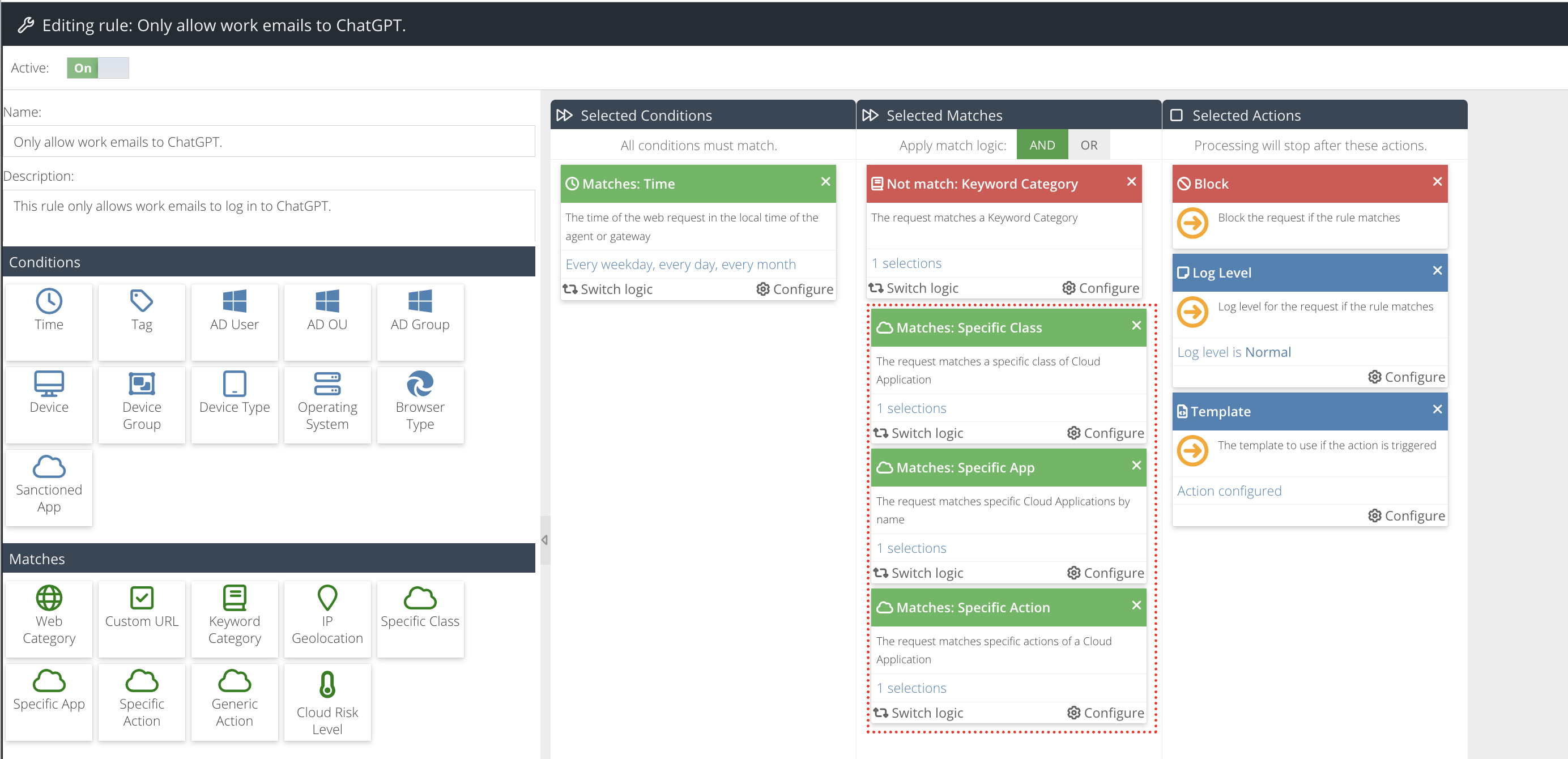
This uses the same Keyword Category + Specific Class/App/Action pattern as blocking Microsoft Online logins to non-company domains, applied to OpenAI instead of Microsoft:
Step 1: Create the Keyword Category
- Go to Security Modules → Global Settings → Keyword Lists.
- Click the green + button to create a new list.
- Set:
- Name:
Allowed ChatGPT Login – Non-Company Domain - Match Logic:
Match Any Pattern - Match Content:
URL & App Action
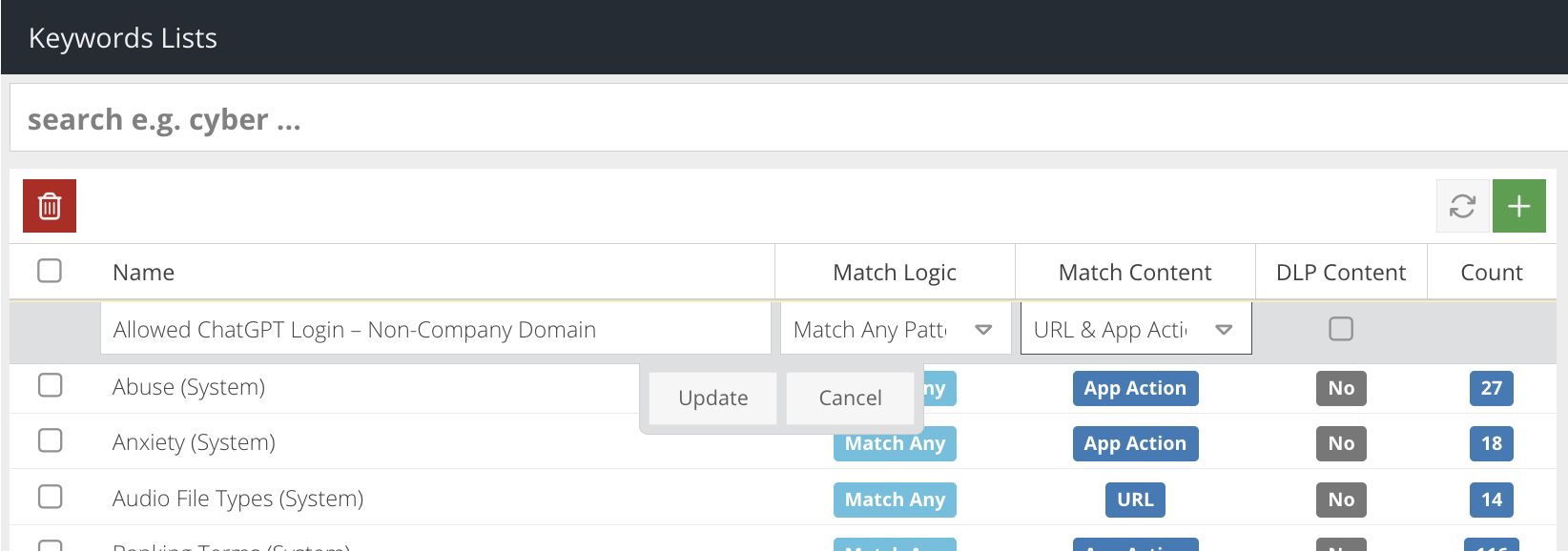
- Save the list, select it, and click the green + button again to add a pattern:
- Pattern:
@companydomain - Match Type:
Contains - Comment:
Matches company email domain

Step 2: Create the Filter Rule
- Go to Security Modules → Web Security → Filter Rules.
- Click the green + button to create a new Block rule.
- Name it
Block ChatGPT Login – Non-Company Domain. - Select the required Condition(s).
- From the Matches panel, drag in:
- Keyword Category → select the
Allowed ChatGPT Login – Non-Company Domain, then select Switch logic so the tile turns red. - Specific Class →
Artificial Intelligence Software - Specific App →
OpenAI - Specific Action →
Attempted to log in
- Keyword Category → select the
- Set the match logic toggle above Selected Matches to AND.
- From the Actions panel, select the required Template.
- Enable the rule.
- Click Save and Close.
Rule 2 (Priority 2) — Web Security: Allow ChatGPT's URLs, with MIME Type Blocking
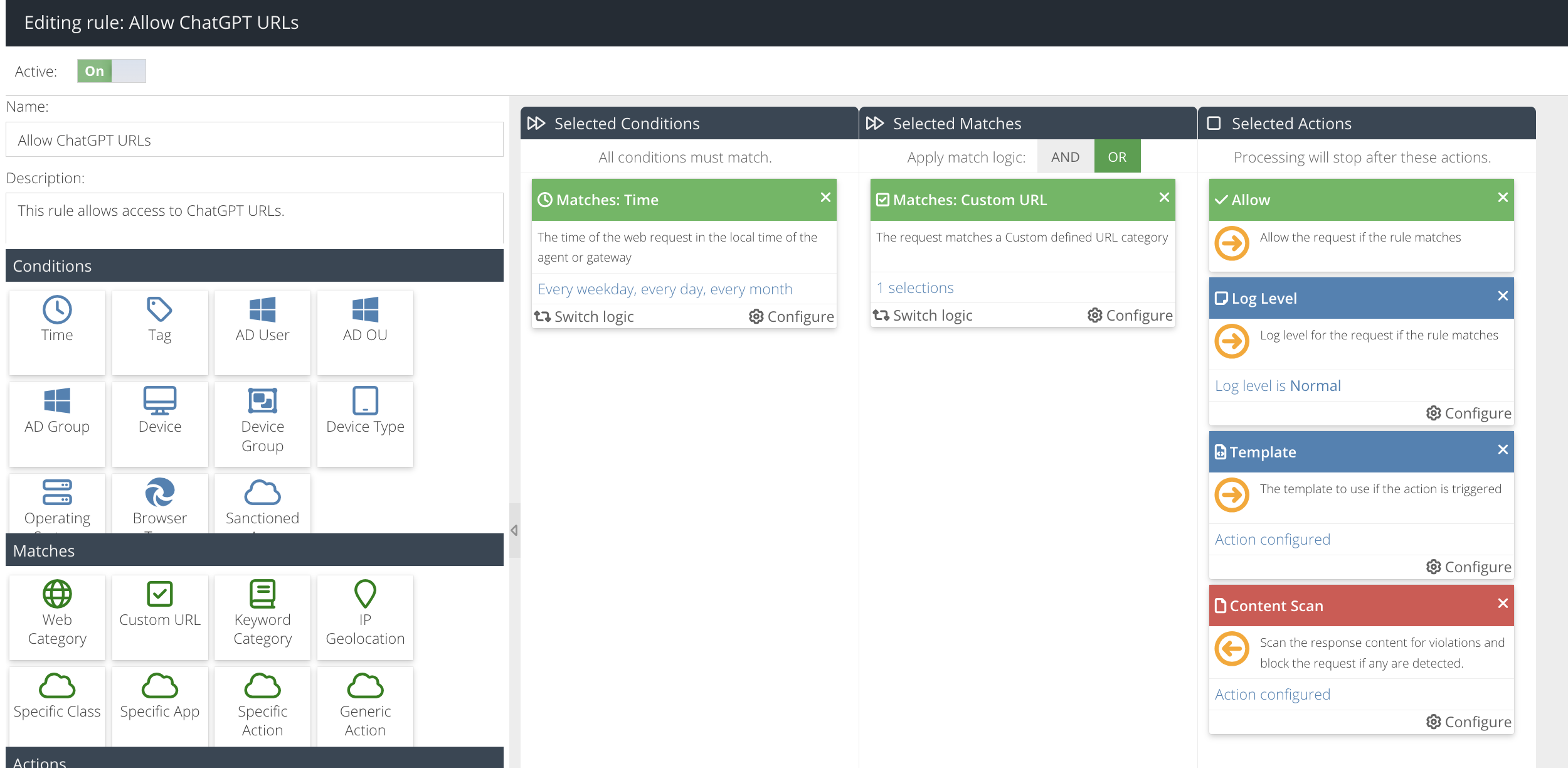
This uses a Custom URL category containing the domains ChatGPT needs, matched by a Web Security Allow rule. Because an Allow rule lets everything through for the matched URLs, add the MIME Type action to that same rule so executables and installers can't be downloaded through it.
Configuration Steps
- Go to Security Modules → Web Security → Custom URL.
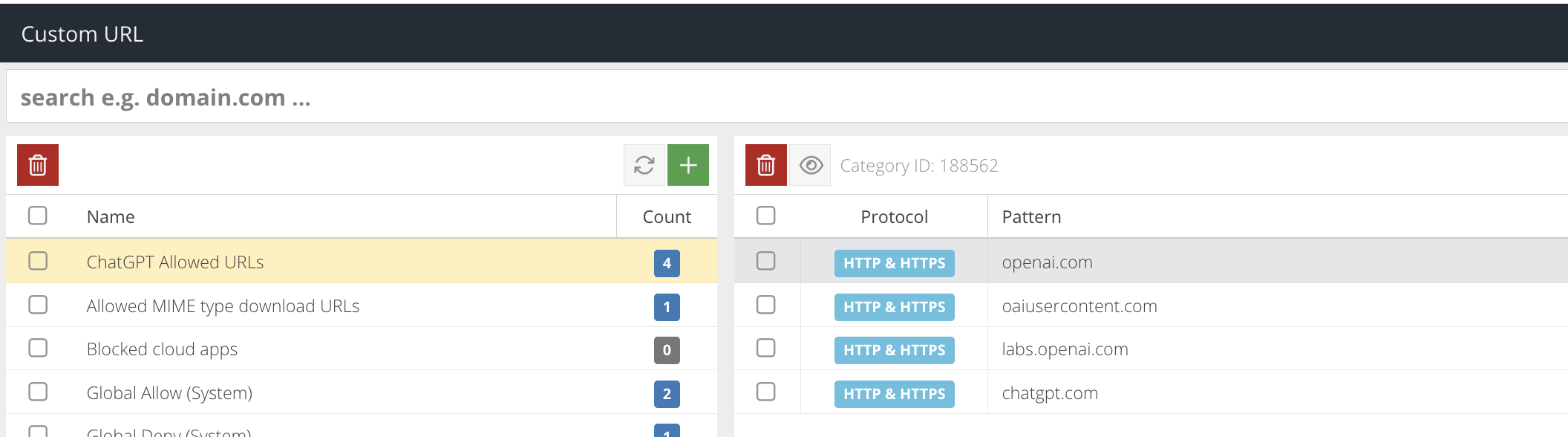
- Click the green + button and name the category, e.g.
ChatGPT Allowed URLs. - Select the category, click the green + button again, and add each pattern (protocol: both HTTP and HTTPS, no scheme or query string in the pattern itself):
chatgpt.comlabs.openai.comoaiusercontent.comopenai.com
- Go to Security Modules → Web Security → Filter Rules.
- Click the green + button to create a new Allow rule.
- Name it
Allow ChatGPT URLs. - From the Matches panel, drag in Custom URL (or URL Category, depending on your version) and select the
ChatGPT Allowed URLscategory. - From the Actions panel, add:
- Template, select the required Template.
- Content Scan → block the
Executable BinaryandInstallerscategories, so.exe,.com,.msi,.pkg,.xpi,.isoand similar files can't be downloaded through the allowed ChatGPT traffic.
- Enable the rule.
- Click Save and Close.
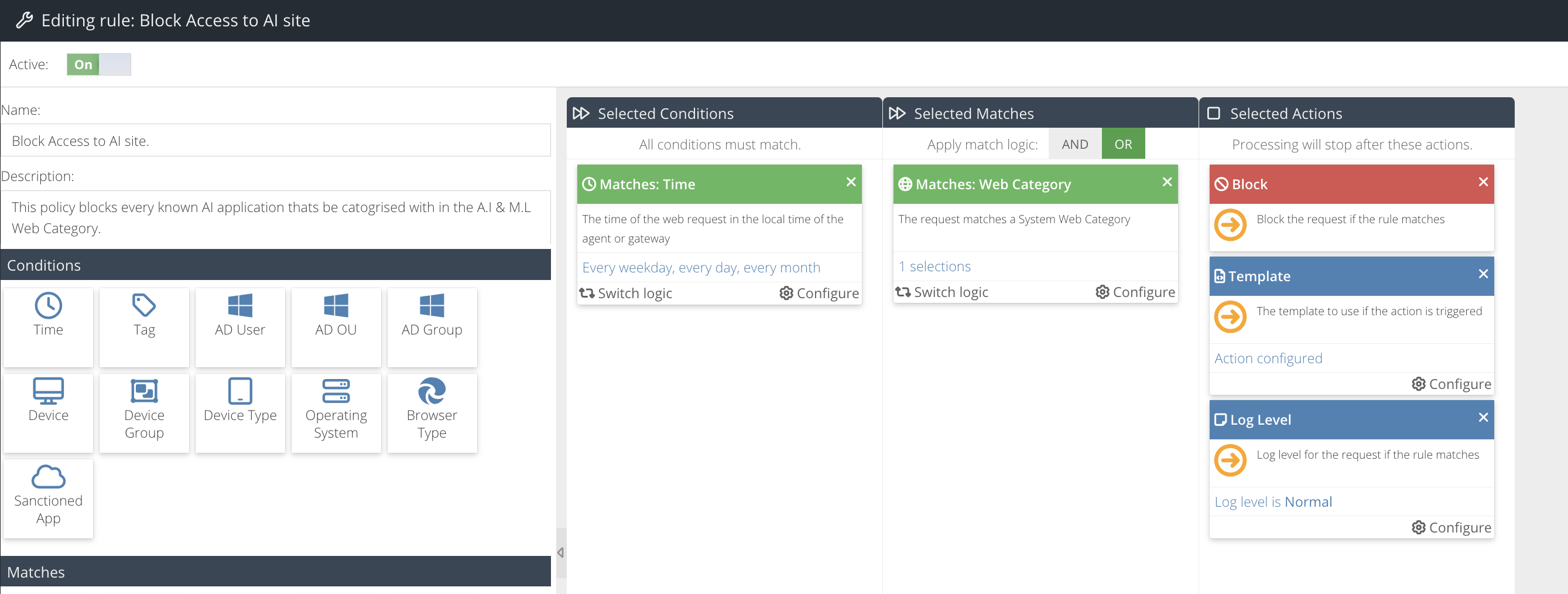
Rule 3 (Priority 3) — Web Security: Block the A.I & M.L Category
This is the catch-all: everything in the A.I & M.L Web Category that isn't already covered by Rule 2's explicit allow is blocked.
Configuration Steps
- Go to Security Modules → Web Security → Filter Rules.
- Click the green + button to create a new Block rule.
- Name it
Block A.I & M.L Categoryand set Priority to3. - From the Matches panel, drag in Web Category and select
A.I & M.L. - From the Actions panel, select the required Template.
- Enable the rule.
- Click Save and Close.
Verifying the Policy
The rule base should look like the following:

- Attempt to log in to ChatGPT with a non-
@companydomainaccount — this should be blocked by Rule 1. - Log in to ChatGPT with a
@companydomainaccount — this should succeed via Rule 2. - Try downloading an
.exeor installer file through ChatGPT — this should be blocked by the MIME Type action on Rule 2. - Browse to an unrelated AI/ML site not in the allowed URL list — this should be blocked by Rule 3.
- Check Activity Reports to confirm each rule is logging matches as expected.
Notes
- Rule order is critical here — if the Custom URL Allow rule (Priority 2) is ever placed above the CASB login-block rule (Priority 1), non-company ChatGPT logins will be let through before the block rule is evaluated.
- Confirm the exact
OpenAIApp Catalogue entry name in your own dashboard — ChatGPT/OpenAI may be listed under more than one App Catalogue entry, similar to how ChatGPT itself appears asChatGPT,ChatGPT Business/Enterprise, andChatGPT (.org). - As a best practice, MIME Type blocking (at minimum
Executable BinaryandInstallers) should be applied to every Allow rule, not just this one. - If additional AI tools need the same "work-account only" treatment, repeat Rule 1 and Rule 2 for each one, keeping every login-block rule above its matching Allow rule and above the Priority 3 catch-all.