CASB - Blocking File Uploads to ChatGPT
 Updated 2 months ago
by
admin
Updated 2 months ago
by
admin
CASB uses the same Rules Engine as Web Security to control cloud application activity. A rule consists of Conditions, Matches (the criteria to look for), Match Logic (how those criteria combine), and Actions (what happens when the rule triggers). This article shows how to use three Specific matches — Class, App, and Action — to block the file-upload action within ChatGPT specifically, without affecting any other app or any other ChatGPT activity.
Rule Conditions
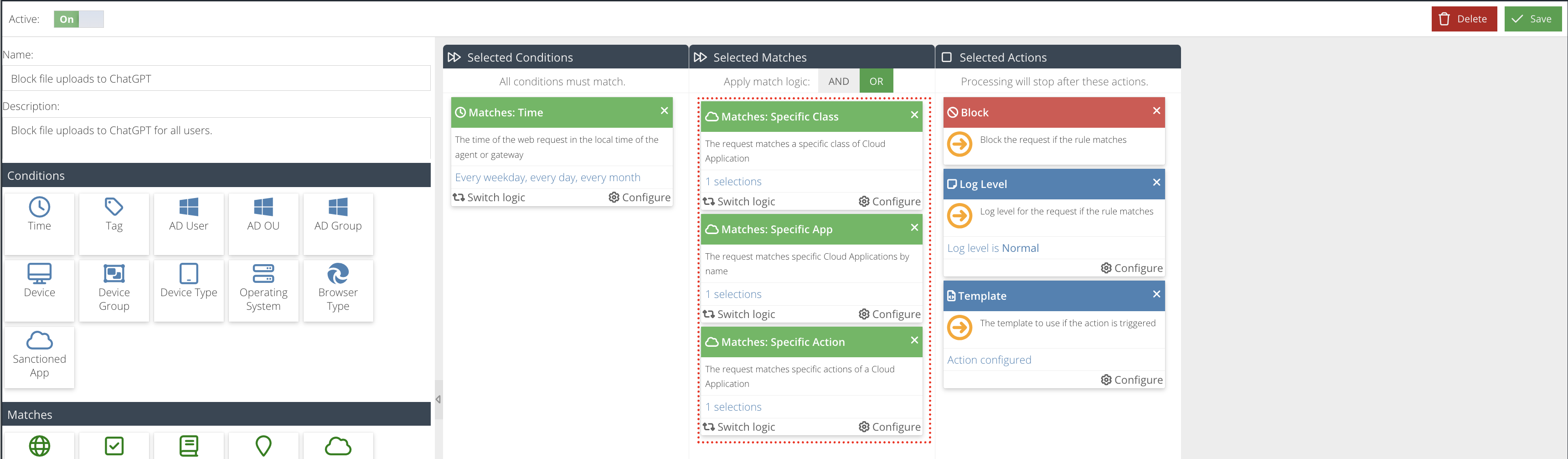
A Time condition is added under Selected Conditions, configured for every weekday, every day, every month, so the rule is always in effect rather than scoped to a schedule.
Rule Matches
Three matches are used, all from the Specific family:
Specific Class
Restricts the rule to Apps belonging to a chosen Cloud Application class — here, Artificial Intelligence Software.
Specific App
Narrows the rule to one or more Apps from the App Catalogue. Searching the catalogue for ChatGPT returns three separate entries: ChatGPT, ChatGPT Business/Enterprise, and ChatGPT (.org). This example selects plainChatGPT; if uploads should be blocked across all variants, select each entry that applies to your policy.
Specific Action
Narrows the rule to a specific action within the selected App. The ChatGPT app exposes its own list of trackable actions — Joined a group chat, Sent a message to chat, Shared a chat, Shared a project, Started a group chat, Uploaded a file, and Used voice mode of the AI assistant. Uploaded a file is the one selected here; the others are available if you want separate rules for other ChatGPT activity.
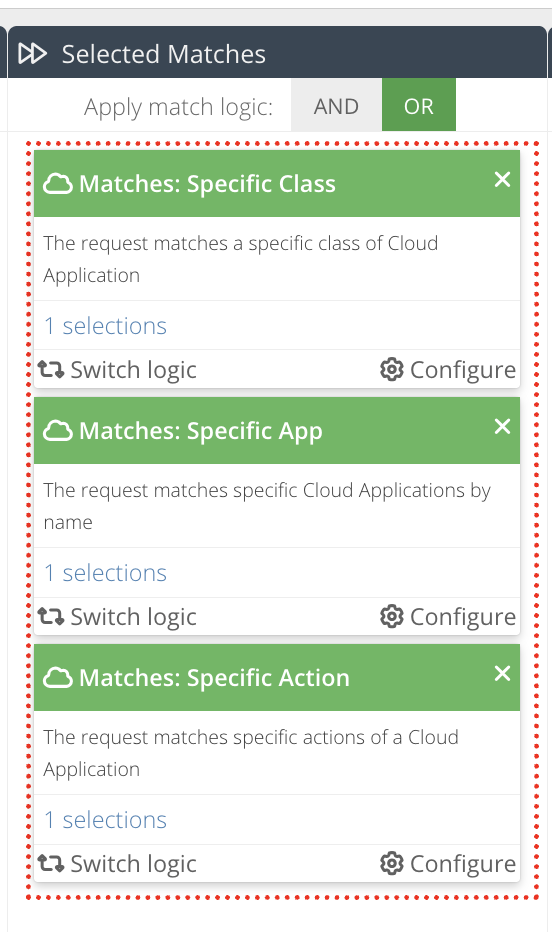
Because Specific Class, Specific App, and Specific Action are all "Specific" match types, the rule builder automatically groups them together with a red border. Every match inside that group must be true for the rule to trigger, regardless of the top-level AND/OR toggle. That toggle only governs logic against any additional, non-Specific matches you add outside the group.
Rule Actions
- Block — stops the request.
- Template — the response page/template shown when the rule triggers.
- Log Level — defaults to
Normal.
Configuration Steps
Step 1: Create the CASB Rule
- Go to Security Modules → Web Security → Filter Rules.
- Click the green + button to create a new Block rule.
- Name it
Block file uploads to ChatGPTand add a Description, e.g.Block file uploads to ChatGPT for all users.
- Under Conditions, select the required Condition(s).
- From the Matches panel, drag the following into the Selected Matches column and configure each (gear icon):
- Specific Class →
Artificial Intelligence Software - Specific App →
ChatGPT,ChatGPT Business/EnterpriseorChatGPT (.org)
Only one Application can be selected if you want to add a Specific Action.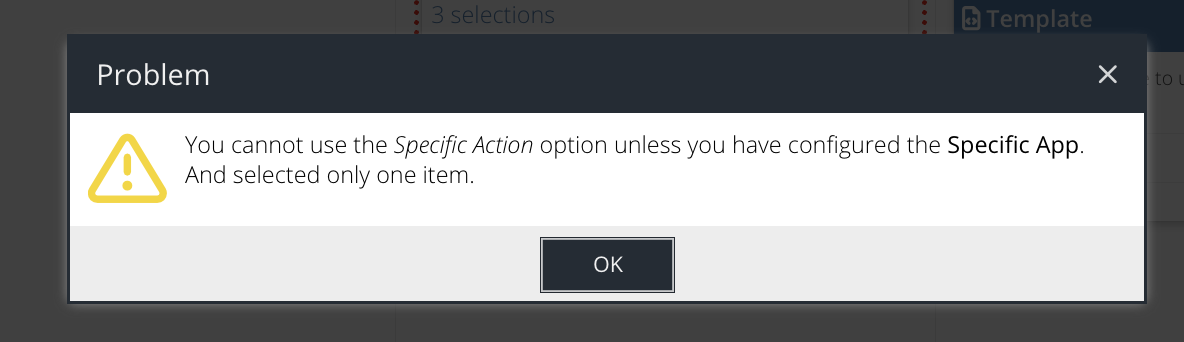
- Specific Action →
Uploaded a fileThese three matches will automatically group together with a red border.
- Specific Class →
- From the Actions panel, select the required Template.
- Enable the rule.
- Click Save and Close.
Verifying the Rule
- Attempt to upload a file within ChatGPT on a device/user in scope — this should be blocked.
- Confirm other ChatGPT activity (e.g. sending a chat message) is unaffected — only the upload action should be blocked.
- Check the CASB Activity Reports to confirm the rule is logging matches as expected.
Notes
- ChatGPT appears as three separate App Catalogue entries —
ChatGPT,ChatGPT Business/Enterprise, andChatGPT (.org)— so check which of these your organisation actually uses before deciding how many to select in the Specific App match. Perfrom an upload and check the CASB activity log to confirm.