Bypass Email Security for Forwarded Addresses on Exchange Online
 Updated 4 months ago
by
admin
Updated 4 months ago
by
admin
Email Security for Forwarded Addresses
If you are unable to configure domains within Microsoft 365 or the Email Security service. You can create a rule and a connection policy that bypasses Email Security for Forwarded Addresses.
- Firstly, log in to your Exchange Admin Console with an Administrator Account. You can use the following link:
https://admin.exchange.microsoft.com/#/homepage (external link)
- Navigate to Connectors, and click Add a connector, then use the following process:
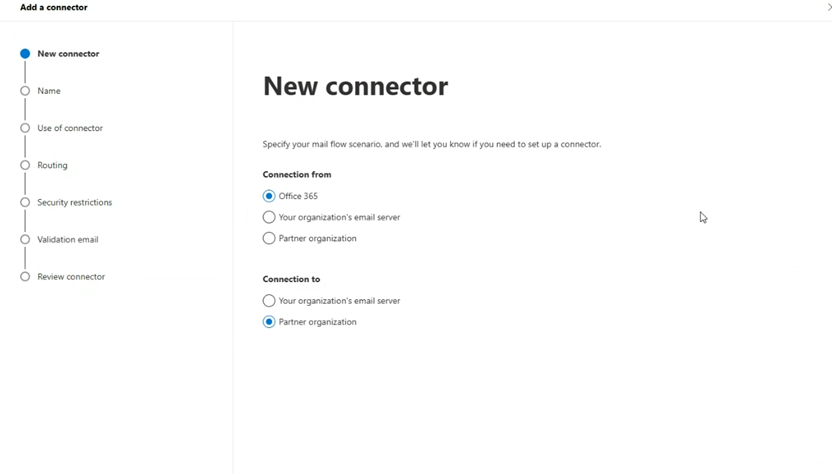
Select Office 365 under "Connection From"
Select Partner Organization under "Connection to"
- Select Next
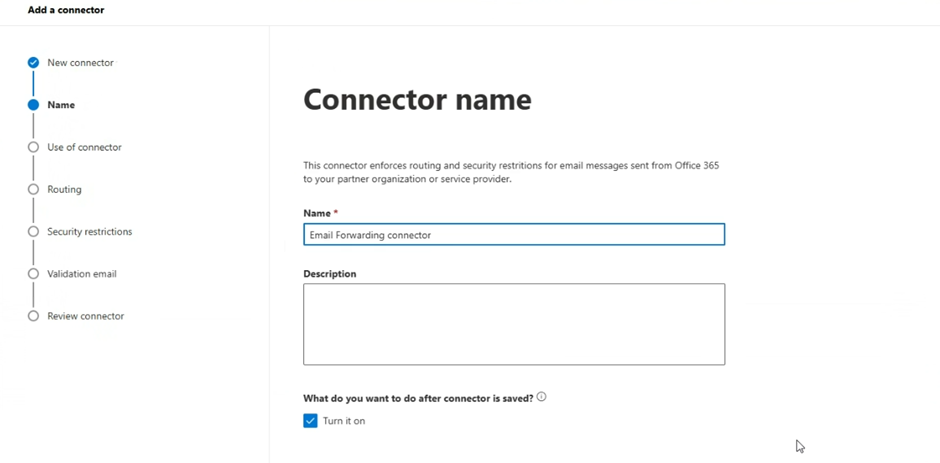
Give the Connector a friendly name and description for your own identification, and optionally add a description.
- Select Next
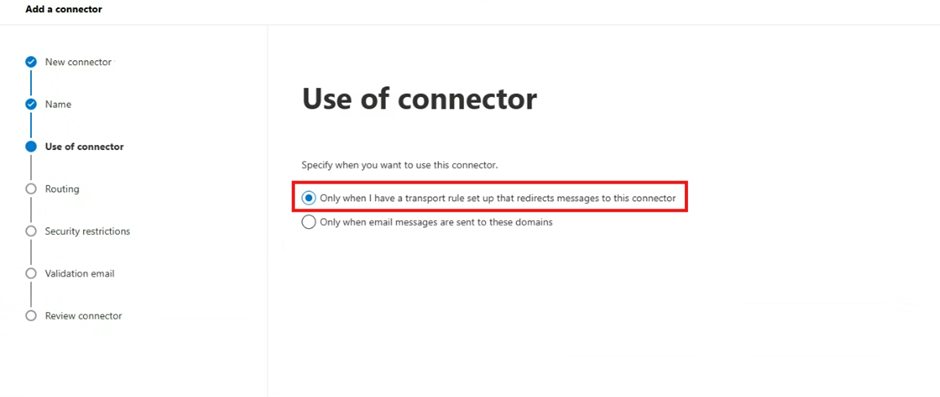
Select "Only when I have a transport rule set up that redirects messages to this connector"
- Select Next
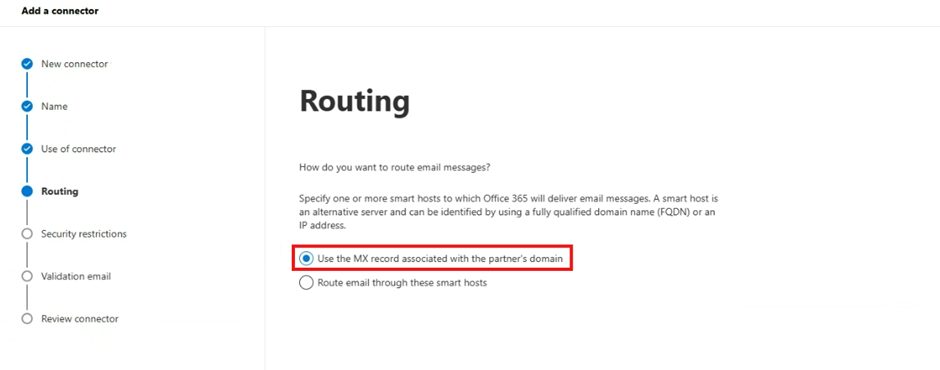
For Routing, select Use the MX record associated with the partner’s domain
- Select Next
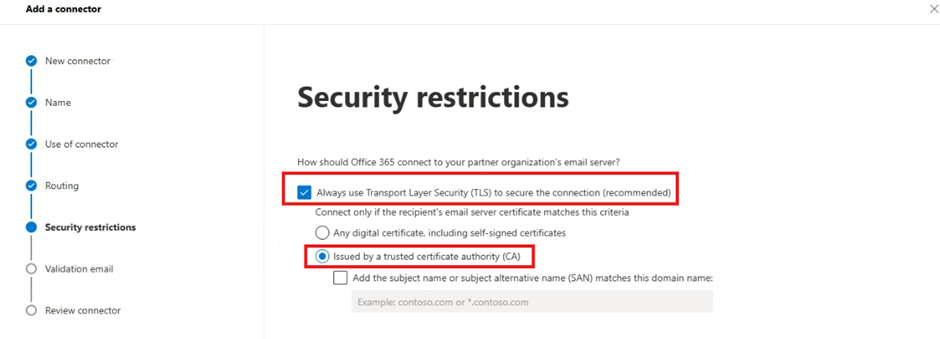
Select the defaults in the Security Restrictions section
- Select Next
Enter the forwarding address that is being forwarded to and click Validate
This address MUST be an external address that you have access to, for example, a Gmail.com address.
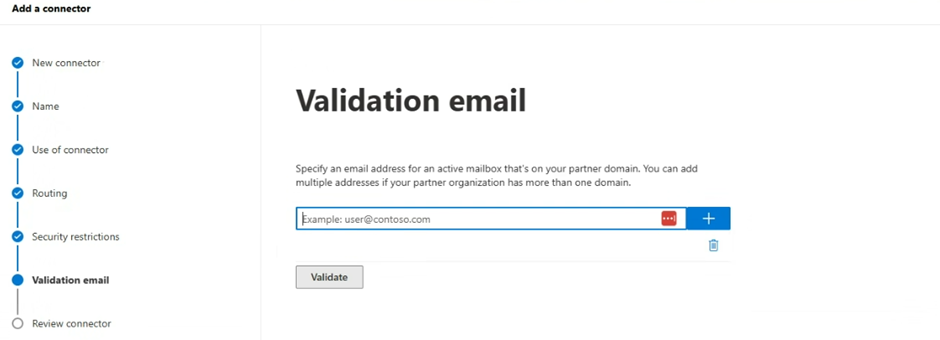
The validation process will start, and this will send a test email automatically to the configured address to verify delivery. Please check you have received it.
- Select Next
Review the connector configurations and click Create Connector.
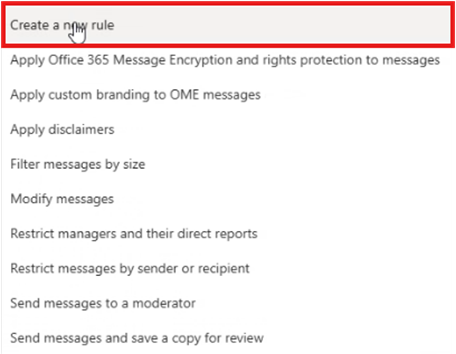
Navigate to Rules within the Exchange Admin Console, and click Add a rule -> Create a new rule:
- Enter the following configuration;

If your email flow is as follows: Sender --> ITSupport@Company.com-->CompanyITSupport@TicketingSystem.com. You must bypass the destination address, which, for the example above, would be: CompanyITSupport@TicketingSystem.com
- Select Next
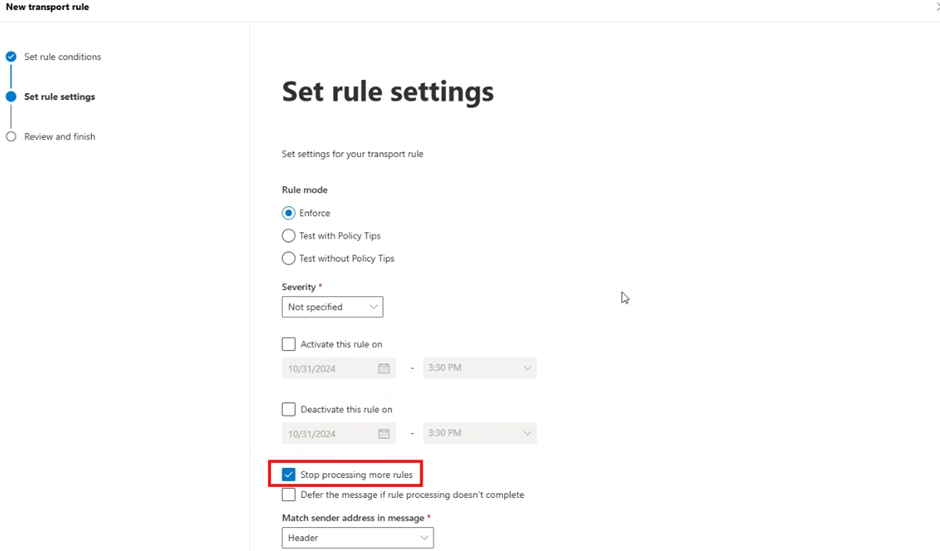
Set rule conditions to make sure that the Rule Mode is set to Enforce, and the tick box for Stop processing more rules is enabled
- Select Next
Review the rule and click Finish