Using the TrustLayer Outlook Add-in
The TrustLayer add-in for Outlook gives end users access to Email Security features without leaving Outlook. It works in Outlook for Windows and Mac, Outlook on the web and Outlook mobile. From the add-in you can:
- Report phishing and spam emails
- Review and release emails from your personal quarantine
- Manage your personal Safe and Deny Lists
- Read and respond to SecureMail messages
- The reading pane must be turned on for the add-in options to appear.
- The add-in only works on your primary mailbox, not on shared mailboxes.
- The add-in is not currently compatible with Outlook Professional Plus or iPadOS.
Installation
The add-in is deployed centrally by your Microsoft 365 administrator, who can also choose which options are available to users. See Installing the Outlook add-in for Email Security.
Show the TrustLayer button in Outlook on the web
If the TrustLayer button does not show on the email toolbar in Outlook on the web, add it:
- Go to View, then View settings.
- Select Customise actions.
- Scroll to the bottom and tick TrustLayer.
Opening the TrustLayer add-in
Select an email so it opens in the reading pane, then open the add-in for your version of Outlook.
Outlook on the web and the new Outlook for Windows
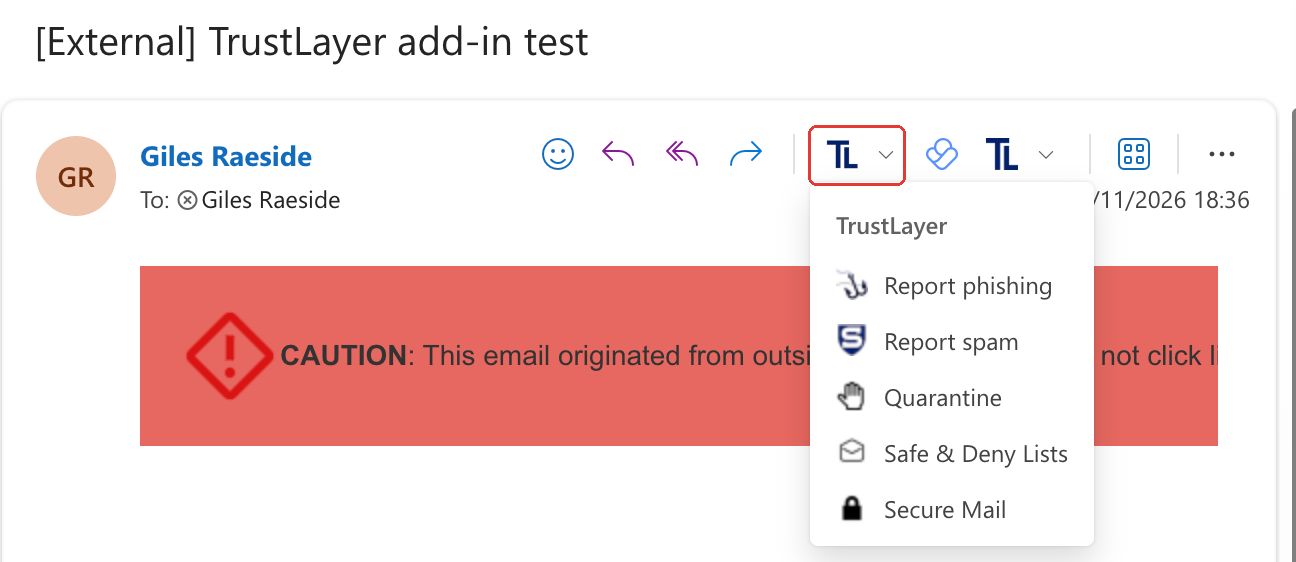
The TrustLayer (TL) button appears on the ribbon and in the toolbar on the email itself, next to Reply, Reply all and Forward.

Click the arrow next to the TrustLayer button to open the menu:
Outlook for Mac
The add-in appears as two buttons in the toolbar. The reading pane must be turned on (View > Reading Pane > Right or Below) for them to become available.
- Report Email: Report phishing and Report spam.
- Email Security: Quarantine, Safe & Deny Lists and Secure Mail.


Classic Outlook for Windows
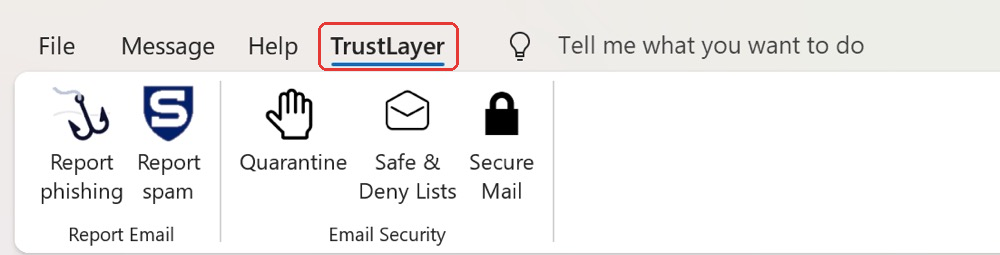
Open the email, then select the TrustLayer tab on the ribbon. The buttons are in two groups:
- Report Email: Report phishing and Report spam.
- Email Security: Quarantine, Safe & Deny Lists and Secure Mail.
Outlook mobile (iPhone and Android)
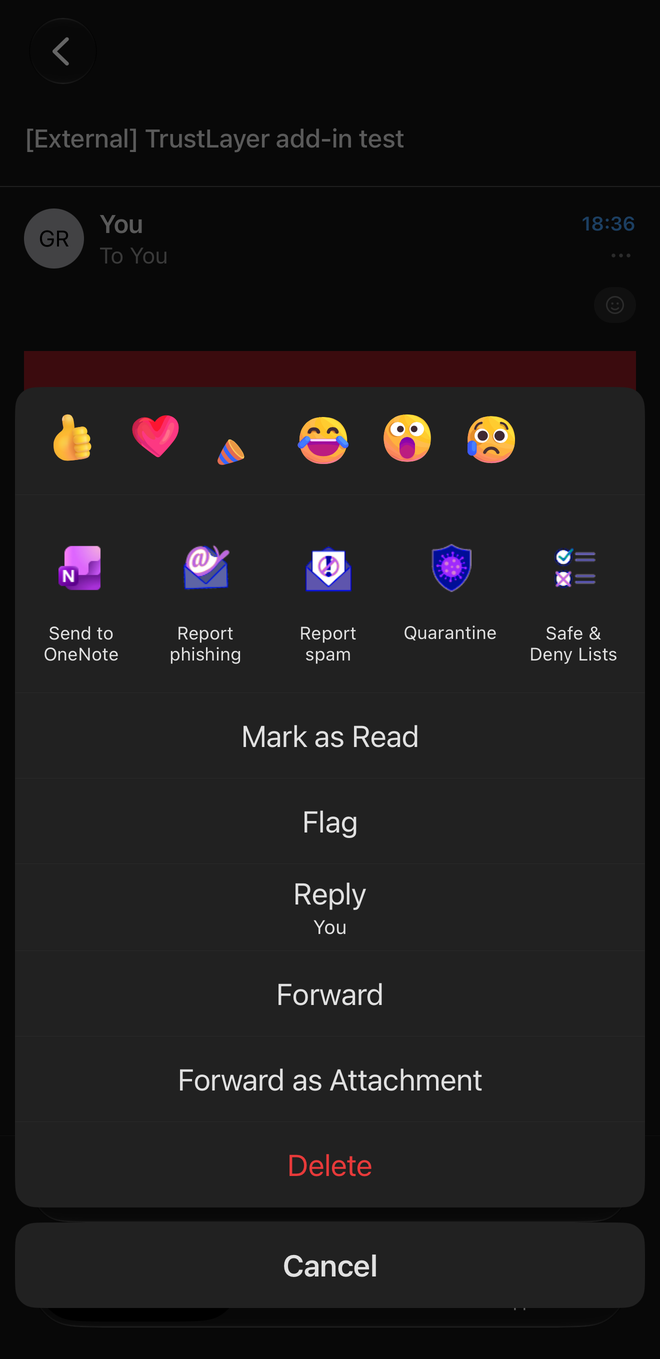
Open the email, then tap ... (More actions) on the message. The TrustLayer actions appear in the row of icons: Report phishing, Report spam, Quarantine, Safe & Deny Lists and Secure Mail. Swipe the row of icons sideways to see Secure Mail and any other options that do not fit on screen.
Reporting phishing and spam
Select Report phishing or Report spam, choose a reason, then click Report. The email is sent to the TrustLayer Email Security team for review. See How to Report Spam and Phishing Emails with the TrustLayer Outlook Add-in for step-by-step instructions.
Quarantine
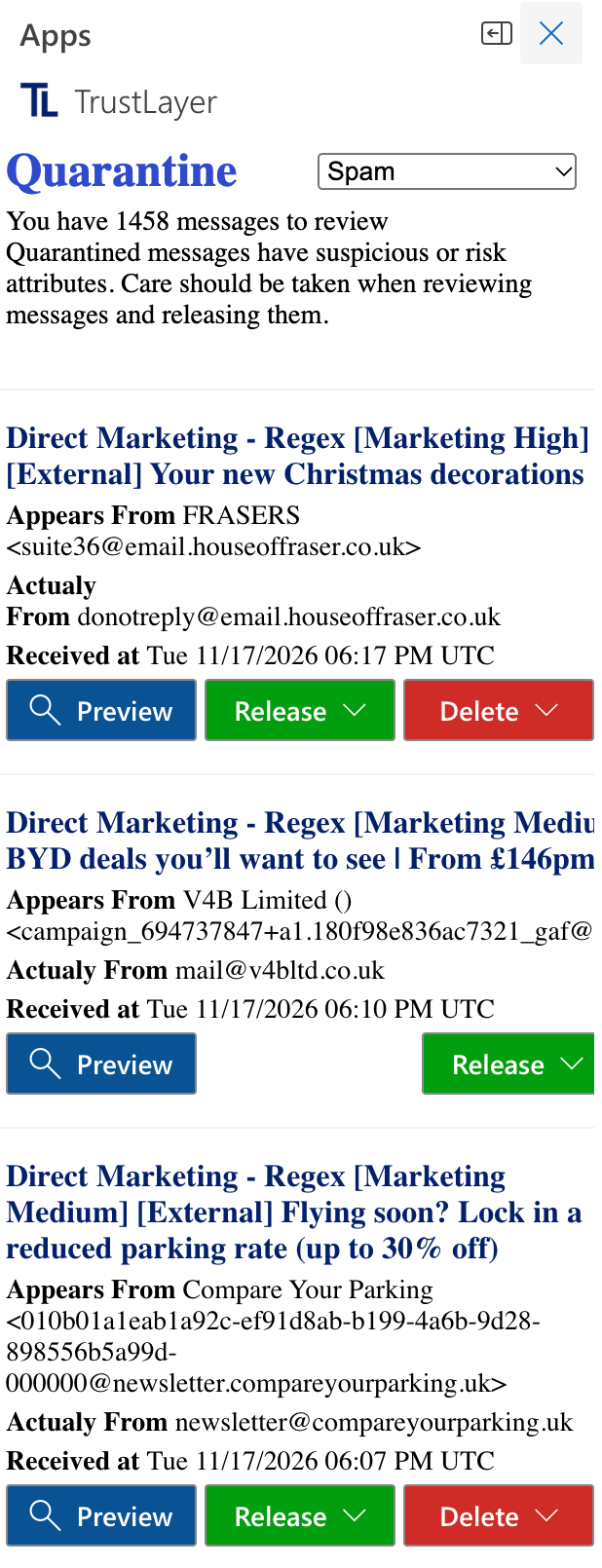
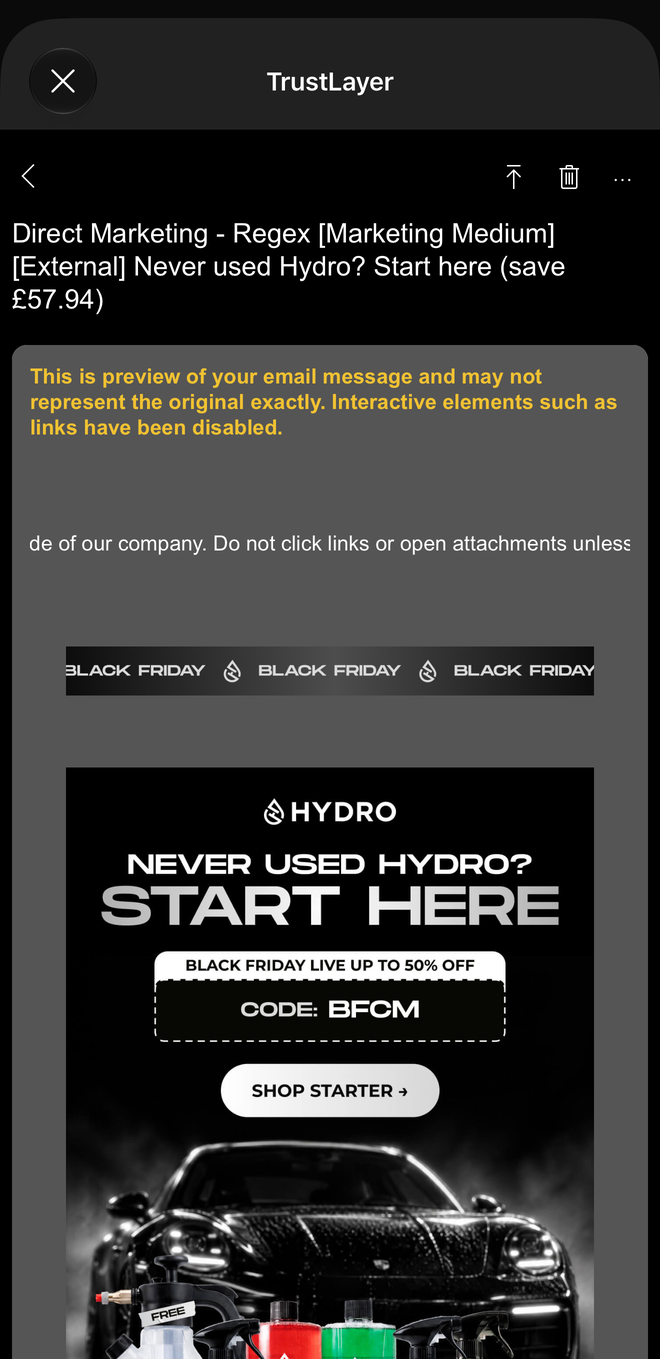
Click Quarantine to open your personal quarantine in a panel on the right of Outlook. It shows how many messages are waiting for review and lists each one with its subject, who it appears to be from, the actual sender address and when it was received.
- Use the dropdown at the top to choose which type of quarantined message to view, for example Spam.
- Preview shows the message safely without releasing it.
- Release delivers the message to your inbox. Use the arrow for more release options.
- Delete removes the message from quarantine.
On Outlook mobile, tap ... next to a message to Preview, Release or Delete it. Previews disable links and other interactive content.
Safe & Deny Lists
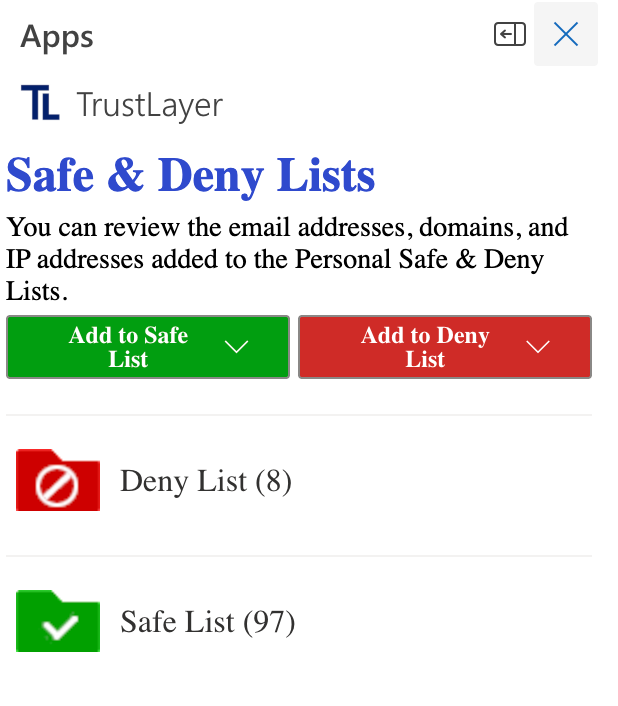
Click Safe & Deny Lists to manage the email addresses, domains and IP addresses on your personal lists.
- Add to Safe List always allows mail from a sender, domain or IP address.
- Add to Deny List always blocks mail from a sender, domain or IP address.
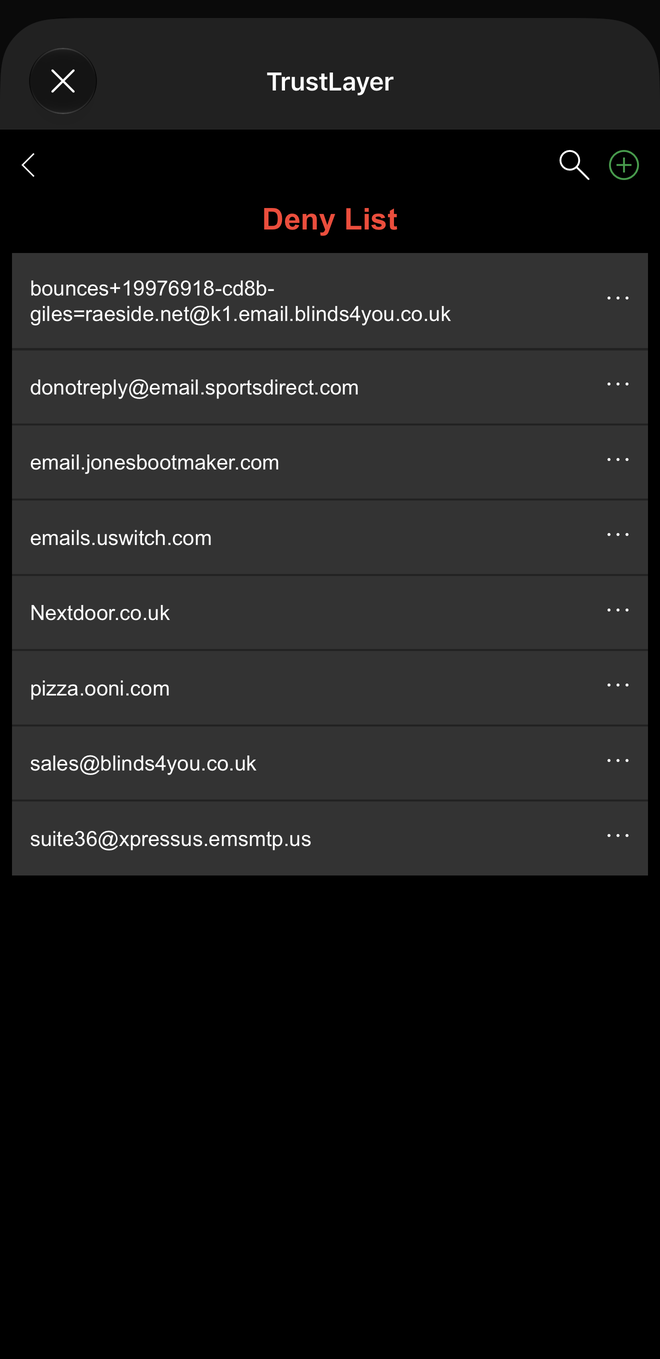
- Click Deny List or Safe List to search, review or remove existing entries. The number shows how many entries each list has.
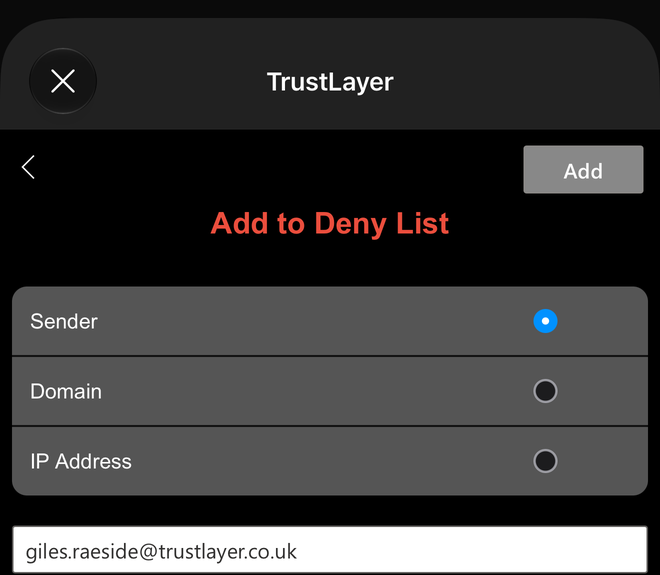
When adding an entry, choose Sender, Domain or IP Address. The details of the selected email are filled in for you and can be edited before you click Add.
On Outlook mobile:
SecureMail
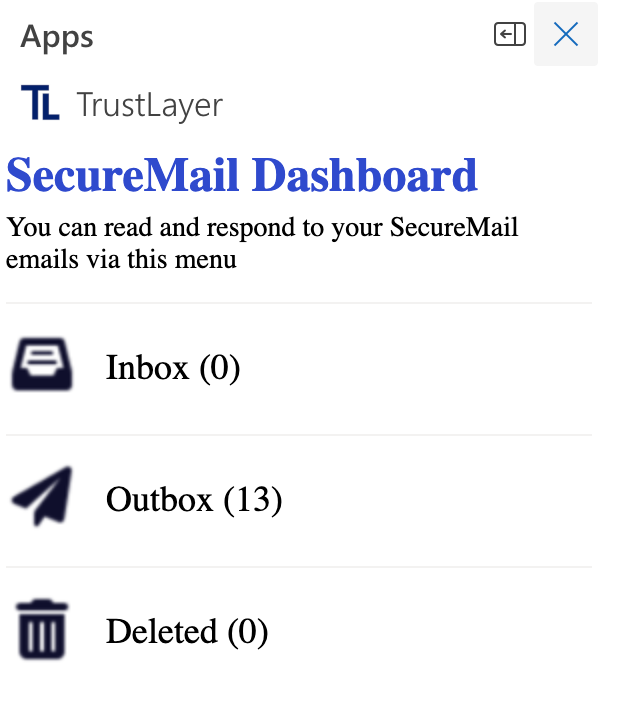
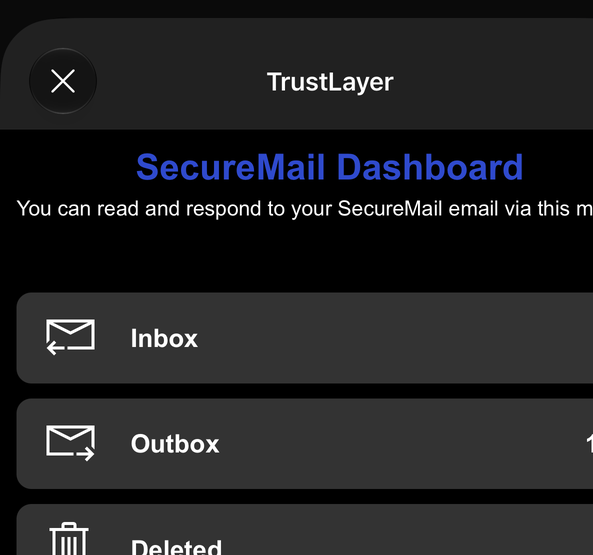
Click Secure Mail to open the SecureMail Dashboard, where you can read and respond to SecureMail messages. It has three folders: Inbox, Outbox and Deleted.
On Outlook mobile, tap ... on an email and swipe the row of icons to find Secure Mail:
Troubleshooting
If you do not see the latest version of the add-in in desktop Outlook, see Outlook add-in is not the newest version.