Keyword Lists (Keyword Categories) - Console
 Updated 2 weeks ago
by
admin
Updated 2 weeks ago
by
admin
Keyword Categories (previously called Keyword Lists) are collections of keyword patterns that you create. They are used to identify URLs and app content through the Keyword Category match in the Rule Builder. Typically they are used for wildcard blocking on URLs, blocking certain words on social media, or blocking file extensions, and they give a lot of flexibility when combined with rules.
Managing Keyword Categories
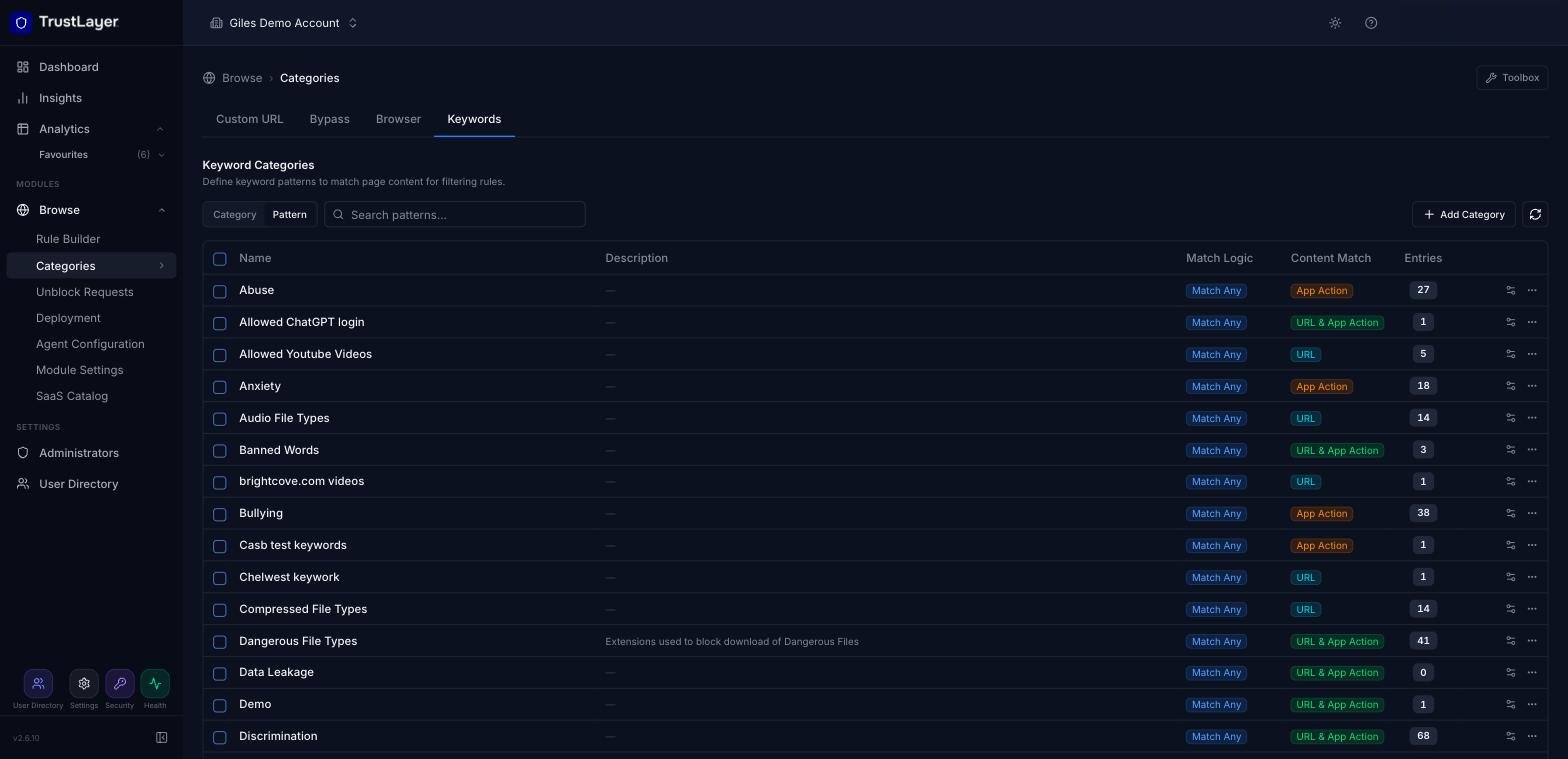
In the console, go to Browse ⟶ Categories and open the Keywords tab.
The list shows every keyword category with its Description, Match Logic, Content Match and number of Entries. Click the settings icon at the end of a row to see and edit the patterns in that category.
Searching
Use the search box above the list. Select Category to search category names, or Pattern to find the categories that contain a matching keyword pattern, then press Enter. Clear the search box to return to the full list.
Adding a new Keyword Category
Click Add Category. A new row appears at the top of the list. Fill in the fields below and click the green + to save (or ✕ to cancel).

Name
The name of the category. It is shown in Analytics for web requests that match it, and in the Rule Builder when you choose it in a Keyword Category match.
Description
An optional description.
Match Logic
When used in a rule, whether the category uses Match Any (any one keyword must match) or Match All (all keywords must match).
Content Match
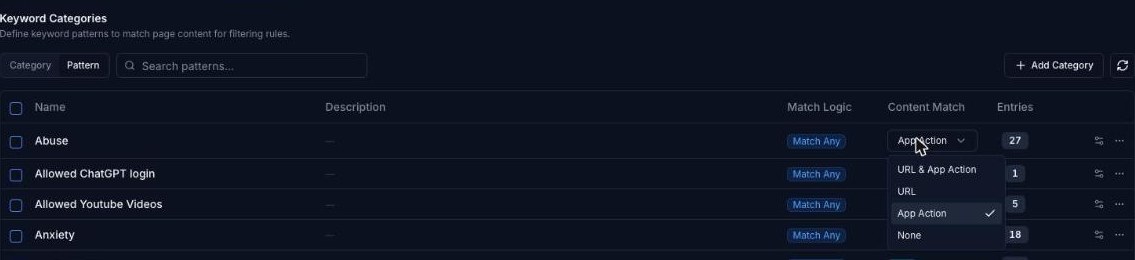
Whether the patterns apply only to URLs, only to App Action content, or to both (URL & App Action). App Action content is the data captured for SaaS app actions, shown in Analytics ⟶ SaaS Activity (requires a Cloud Application Security licence).
Renaming and deleting Keyword Categories
Click the ⋯ menu at the end of a category's row and select Rename or Delete category.
Deleting a category removes it from any rules that use it, and deletes all the patterns in it.
Changing Match Logic or Content Match
To change an existing category's Match Logic or Content Match, click the value in the list and choose the new setting.
Managing Patterns
Patterns are the words or strings to match. Each pattern has a match type. Together with the category's Match Logic, this decides how the patterns are applied by the rules engine.
Adding Patterns
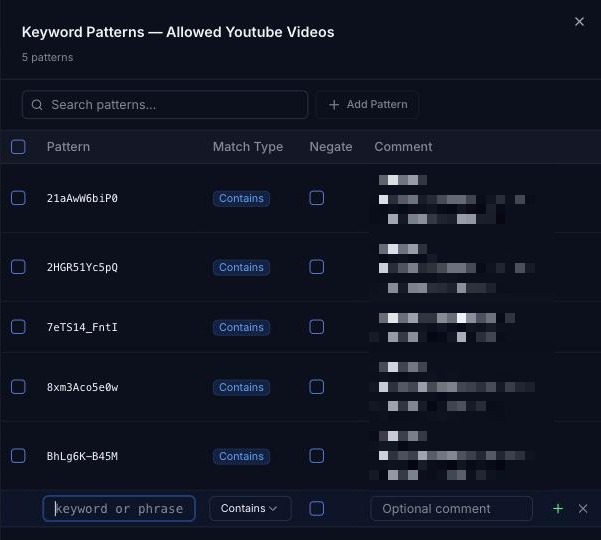
- Click the settings icon at the end of the category's row. The Keyword Patterns panel opens, listing the existing patterns with their Match Type, Negate setting and Comment.
- Click Add Pattern, fill in the new row and click the green +.
Pattern
The keyword or phrase to match against. Patterns should be simple, but not so generic that you risk false positives.
and" or common word endings like "ing".Match Type
The type of matching to apply to the pattern (for example Contains).
Negate
Inverts the match type to "does not contain", "does not start with", and so on. Negate is only available if the category's Match Logic is Match All and there is at least one other pattern in the category.
Comment
An optional short description of the pattern.
Searching and deleting Patterns
Use the Search patterns box at the top of the panel to find a pattern. To delete a pattern, hover over it and click the delete (bin) icon at the end of its row.
Using Keyword Categories in Rules
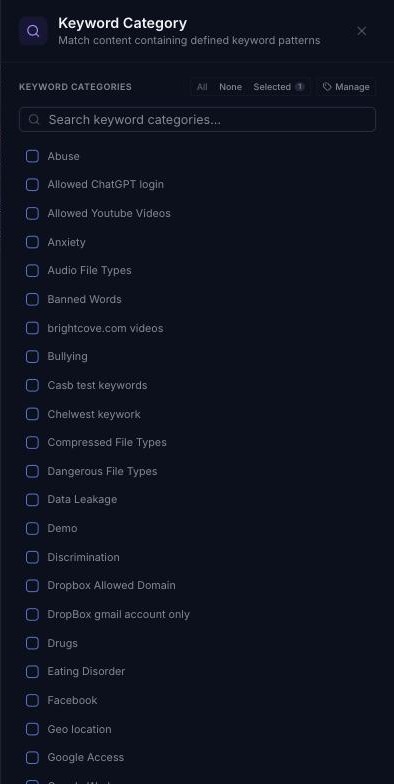
Add a Keyword Category match to a rule in the Rule Builder and tick the categories to use. Click Manage in the match's settings panel to jump to the Keywords tab. For example, you might block specific words on social media, or block URLs ending with certain file extensions.