Deployment Section - Console
 Updated 2 weeks ago
by
admin
Updated 2 weeks ago
by
admin
The Deployment page gives an overview of all the deployed Browse agents and gateways connected to your account. When agents are deployed they register with your account, so they can retrieve their configuration settings and know how to connect to the cloud service. The Deployment page lets you view and manage them.
Viewing connected agents
In the console, go to Browse ⟶ Deployment. The page lists every registered agent with some details about it.
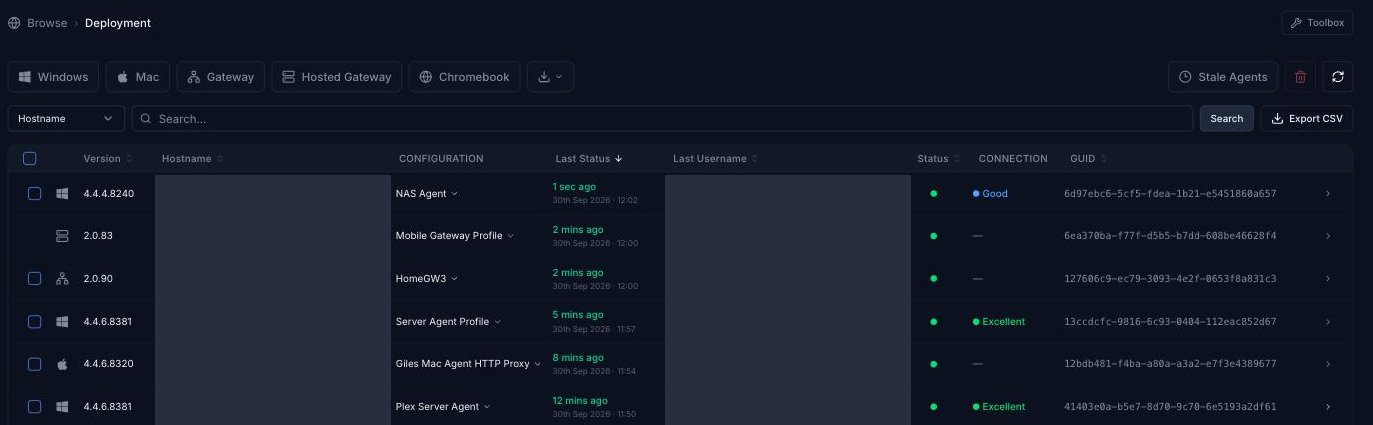
Use the buttons at the top to show only one type of agent: Windows, Mac, Gateway, Hosted Gateway or Chromebook.
The list shows these columns:
Agent type
An icon showing the type of agent (Windows, Mac, Gateway, Hosted Gateway or Chromebook).
Version
The last reported version of the agent.
Hostname
The name assigned to the agent during registration. This defaults to the device hostname.
Configuration
The agent profile the agent is using. Click it to assign a different profile (see Changing an agent's profile below).
Last Status
When the agent last reported its status, in local time (with the date underneath).
Last Username
The last username captured by the agent (not supported by the Gateway).
Status and Connection
A status dot showing whether the agent is currently reporting, and the quality of its connection to the service (for example Excellent, Good or Poor).
GUID
The system-assigned unique identifier for this agent. It can't be changed.
Viewing an agent's details
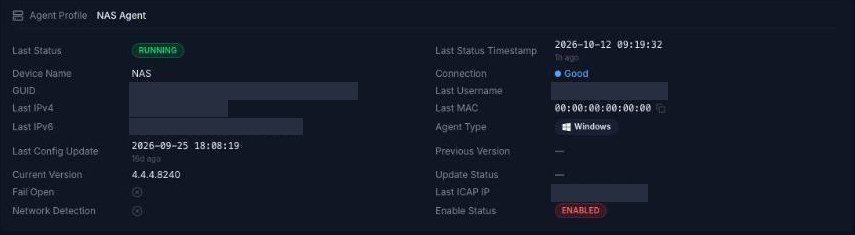
Click the arrow at the end of an agent's row to expand its details. These include the Agent Profile in use, device name, GUID, last IPv4/IPv6 and MAC address, last config update, current and previous version, update status, last status (e.g. RUNNING), last ICAP IP, and whether Fail Open and Network Detection are active.
Searching and exporting
Choose a field from the drop-down next to the search box (for example Hostname), enter your search and click Search. Click a column heading to sort by it. Click Export CSV to download the list.
Finding stale agents
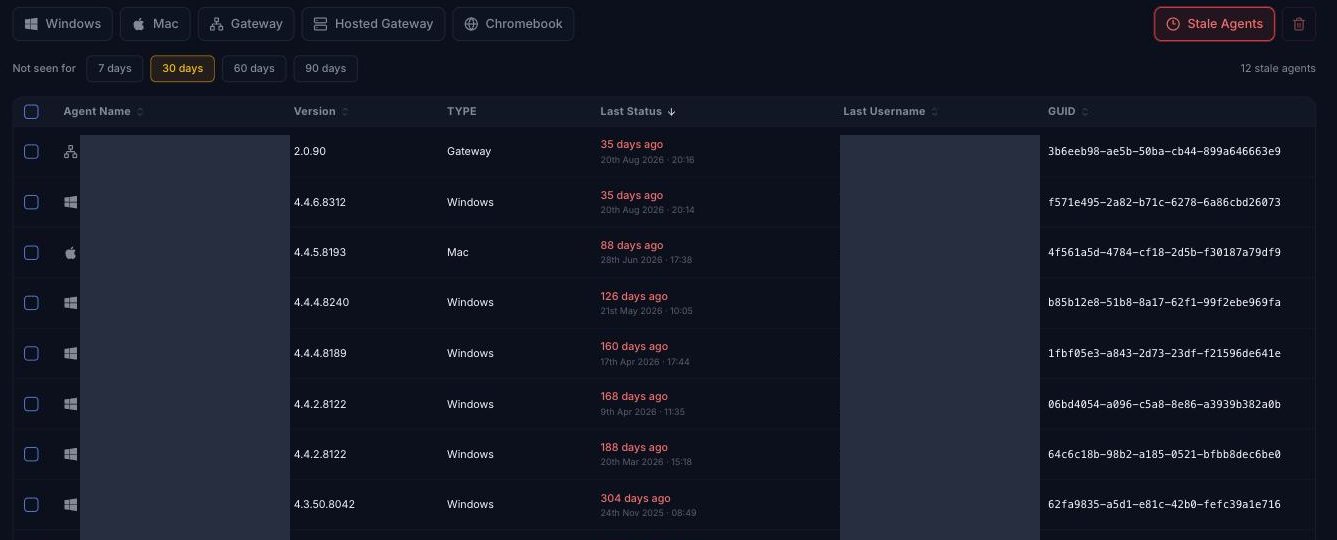
Click Stale Agents to list agents that haven't reported in for a while. Choose 7 days, 30 days, 60 days or 90 days next to Not seen for. The number of stale agents is shown on the right.
Downloading agents
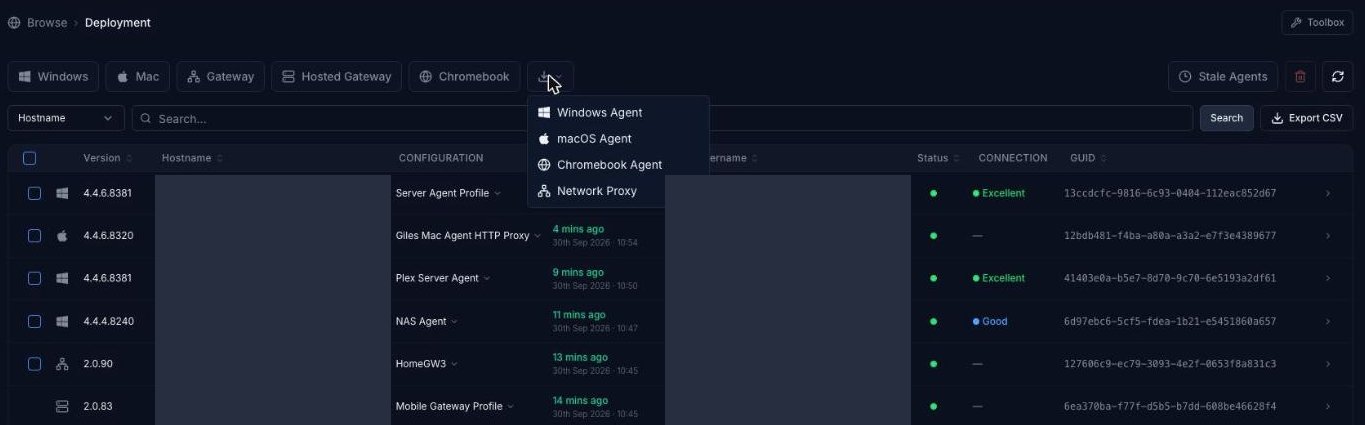
Click the download button (the arrow next to the agent type buttons) and choose Windows Agent, macOS Agent, Chromebook Agent or Network Proxy (the USS Gateway).
For release notes and other versions, see Download Microsoft Windows agent and Download macOS Agent.
Changing an agent's profile
By default, newly registered agents use the default Agent Configuration profile for their type, or the profile selected during installation.
To assign a different profile to an agent, click the profile name in the agent's Configuration column and choose the new profile from the list. Only profiles for that agent type are shown.
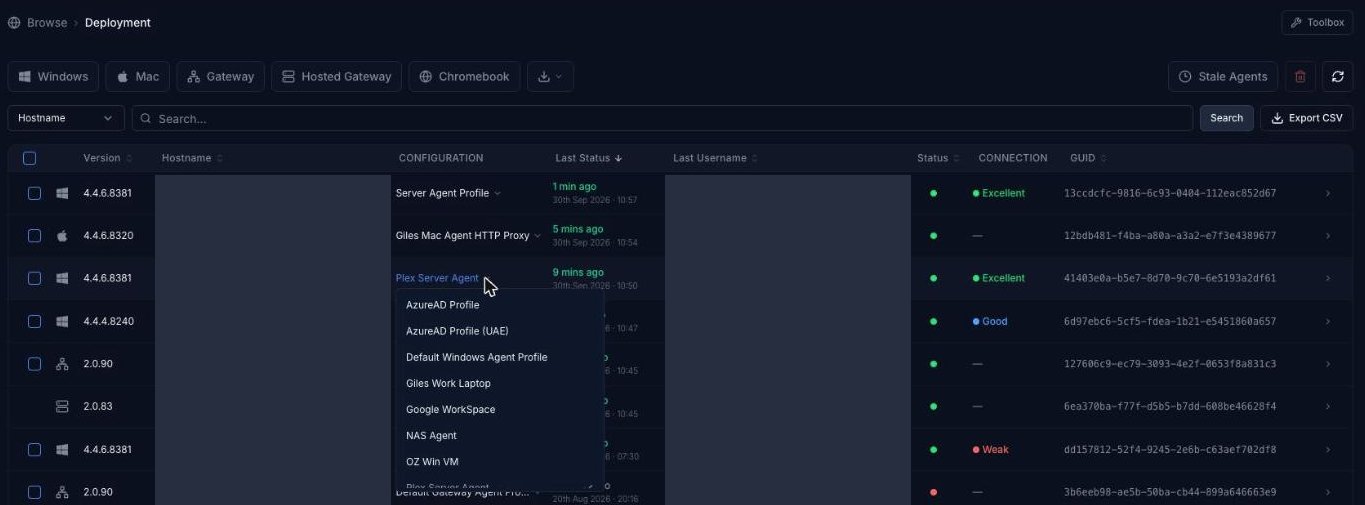
The agent downloads the new profile the next time it polls for a configuration change, or when Update Config is used in the agent itself.
Removing an agent
To remove an agent, it's best to uninstall the software from the endpoint or, for a gateway, use the Reset & Connect option. This removes the agent from the Deployment list automatically.
If you can't do this, or want to force the removal of an agent, tick the agent(s) in the list and click the delete (bin) icon at the top right.