User Directory (Active Directory and Entra ID) - Console
 Updated 2 weeks ago
by
admin
Updated 2 weeks ago
by
admin
The User Directory page connects your account to your user directories, so that you can use directory users and groups in modules that support them, such as Browse rules. On-premise Active Directory, Microsoft Entra ID and Google Workspace directories are supported.
Viewing your directories
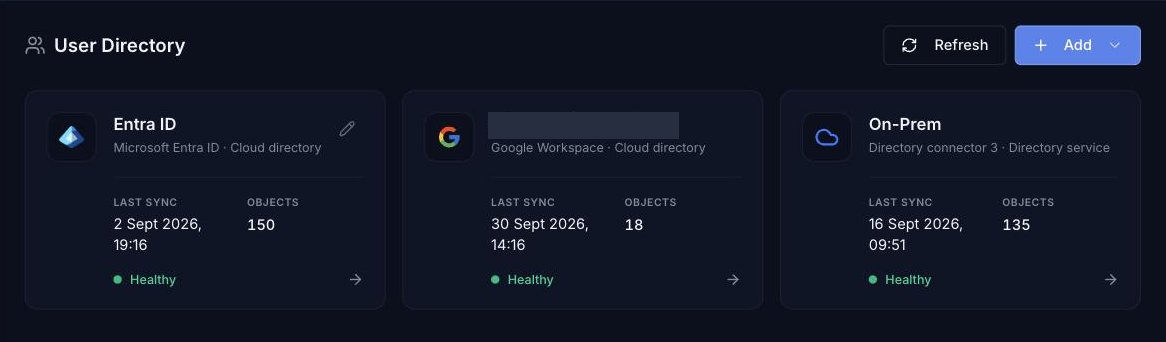
In the console, click User Directory in the left-hand menu (under Settings). Each connected directory is shown as a card with its type, the Last sync time, the number of Objects synchronised and its health (for example Healthy). Click Refresh to update the list, and click the arrow on a card to see its details.
Adding a Microsoft Entra ID directory
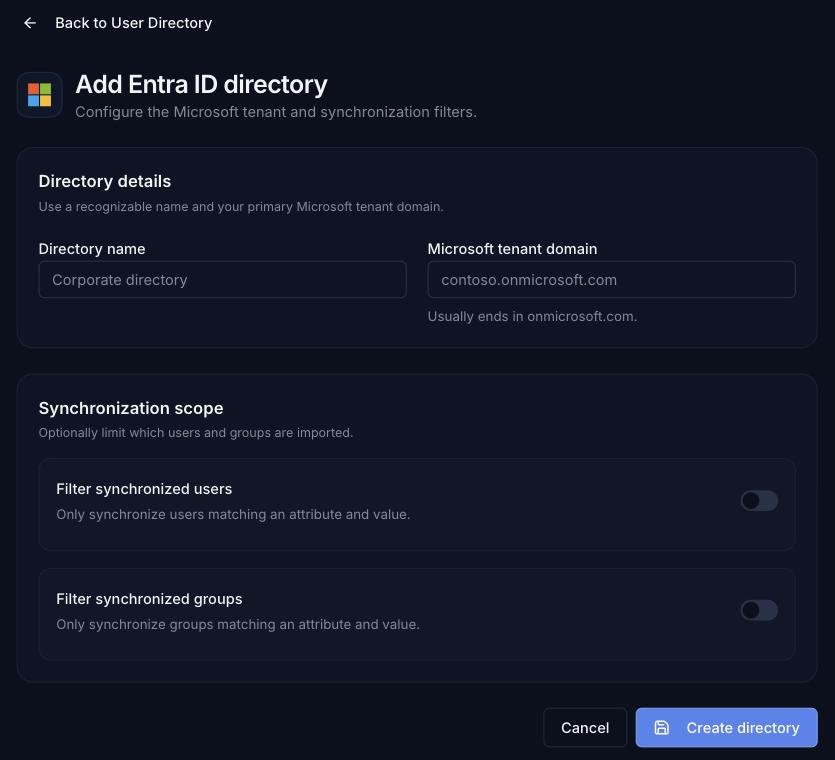
- Click the arrow next to Add and choose Microsoft Entra ID.
- Enter a Directory name you will recognise, and your Microsoft tenant domain (usually ending in
onmicrosoft.com). - Optionally, under Synchronization scope, turn on Filter synchronized users or Filter synchronized groups to only import users or groups that match an attribute and value.
- Click Create directory.
samaccountname attribute, which some Browse features rely on. For full user-based filtering, synchronise an on-premise Active Directory (or a hybrid Entra ID environment) as well.Editing or deleting a directory
Click the pencil icon on a directory's card to change its name, tenant domain or synchronisation scope, then click Save changes. To remove the directory, click Delete directory.
On-premise Active Directory and Google Workspace
Existing on-premise Active Directory (synchronised by the AD Connect software) and Google Workspace directories are shown on the User Directory page. Adding new ones from the new console is marked Coming soon.