Upgrading the USS Gateway from PostgreSQL 14 to PostgreSQL 18 (Ubuntu 22.04)
- Before You Start
- Option 1: Upgrade Using the Script (Recommended)
- Option 2: Manual Step-by-Step Guide
- Step 1: Switch to root
- Step 2: Back up the database and its configuration
- Step 3: Install PostgreSQL 18
- Step 4: Check the USS Gateway package and database clusters
- Step 5: Stop the USS Gateway services
- Step 6: Upgrade the database to PostgreSQL 18
- Step 7: Check the upgraded database
- Step 8: Reboot the USS Gateway
- Verifying the Upgrade
- Rolling Back to PostgreSQL 14
- Notes
This article describes how to upgrade the database on a USS Gateway running Ubuntu 22.04 from PostgreSQL 14, which is now end of life, to PostgreSQL 18. The existing database, settings and data are carried across, and PostgreSQL 14 is kept (stopped) until you are happy with the upgrade, so you can roll back.
Before You Start
- If using the manual steps, follow Updating PostgreSQL 14 to 14.25 on the USS Gateway (Ubuntu 22.04) first. This adds the PostgreSQL repository that PostgreSQL 18 is installed from. The script adds the repository itself if it is missing.
- Take a VM snapshot of the USS Gateway. This is your fallback if anything goes wrong.
- You need root (sudo) access to the USS Gateway Command Line.
- Allow around 30 minutes. The database upgrade itself takes under a minute.
There are two ways to carry out the upgrade. Option 1 (recommended) runs a script that performs and checks every step for you. Option 2 lists the same steps to run manually.
Option 1: Upgrade Using the Script (Recommended)
The script backs up the database, adds the PostgreSQL repository if needed, installs PostgreSQL 18, stops the USS Gateway services, upgrades the database and checks the result. It stops without going further if anything is not as expected, and writes a log to /root/pg18-upgrade-<date>.log.
Step 1: Switch to root
Log in to the USS Gateway Command Line and run these two commands on their own:
sudo su
cd /tmp
Step 2: Create the script
Copy the whole block below, from the first line (cat > /root/pg18-upgrade.sh <<'SCRIPT') to the last line (SCRIPT), and paste it at the root prompt. This creates the script file; nothing is run yet.
cat > /root/pg18-upgrade.sh <<'SCRIPT'
#!/bin/bash
# TrustLayer USS Gateway (Ubuntu 22.04): upgrade PostgreSQL 14 to PostgreSQL 18
# Run as root:  bash /root/pg18-upgrade.sh
# PostgreSQL 14 is kept (stopped) afterwards so you can roll back.

set -euo pipefail
cd /tmp
LOG=/root/pg18-upgrade-$(date +%Y%m%d-%H%M%S).log
exec > >(tee -a "$LOG") 2>&1
SERVICES="uss-squid5 ussgw_sysmond freeradius php8.1-fpm nginx"
export DEBIAN_FRONTEND=noninteractive NEEDRESTART_MODE=l

step() { echo; echo "=== $* ==="; }
fail() { echo; echo "ERROR: $*"; echo "No further changes made. Log: $LOG"; exit 1; }

step "1/8 Pre-checks"
[ "$(id -u)" = 0 ] || fail "Run this script as root."
dpkg -s ussgateway 2>/dev/null | grep -q 'install ok installed' || fail "USS Gateway package not found."
pg_lsclusters
if ! pg_lsclusters -h | awk '$1==14 && $2=="main" && $4=="online"' | grep -q .; then fail "PostgreSQL 14 (14/main) is not running."; fi
if pg_lsclusters -h | awk '$1==18' | grep -q .; then fail "A PostgreSQL 18 cluster already exists."; fi

step "2/8 PostgreSQL repository"
if [ -f /etc/apt/sources.list.d/pgdg.sources ]; then
  echo "Already configured."
else
  install -d -m 0755 /usr/share/postgresql-common/pgdg
  curl -fsSL https://www.postgresql.org/media/keys/ACCC4CF8.asc -o /usr/share/postgresql-common/pgdg/apt.postgresql.org.asc
  cat > /etc/apt/sources.list.d/pgdg.sources <<'EOF'
Types: deb
URIs: https://apt.postgresql.org/pub/repos/apt
Suites: jammy-pgdg
Components: main
Architectures: amd64
Signed-By: /usr/share/postgresql-common/pgdg/apt.postgresql.org.asc
EOF
  echo "Added."
fi

step "3/8 Backup (/root)"
sudo -u postgres pg_dumpall | gzip > /root/pg14-dumpall.sql.gz
cp -a /etc/postgresql/14 /root/pg14-etc-backup
ls -lh /root/pg14-dumpall.sql.gz

step "4/8 Install PostgreSQL 18"
apt-get update -q
SIM=$(apt-get -s install postgresql postgresql-18 postgresql-client-18)
echo "$SIM" | grep -E '^(Inst|Remv)' || true
if echo "$SIM" | grep -q '^Remv'; then fail "Installing PostgreSQL 18 would remove packages (listed above)."; fi
apt-get install -y -o Dpkg::Options::=--force-confold postgresql postgresql-18 postgresql-client-18
dpkg -s ussgateway | grep -q 'install ok installed' || fail "USS Gateway package is no longer installed - restore your snapshot."
if pg_lsclusters -h | awk '$1==18 && $2=="main"' | grep -q .; then pg_dropcluster 18 main --stop; fi
pg_lsclusters

step "5/8 Stop USS Gateway services (web filtering stops here)"
systemctl stop $SERVICES
sleep 3
N=$(sudo -u postgres psql -X -Atc "select count(*) from pg_stat_activity where datname='cloudgw'")
if [ "$N" != "0" ]; then
  sudo -u postgres psql -X -c "select pid,usename,application_name,state from pg_stat_activity where datname='cloudgw'"
  systemctl start $SERVICES
  fail "$N connection(s) still open to the database. Services restarted; PostgreSQL 14 unchanged."
fi
echo "Services stopped, no database connections."

step "6/8 Upgrade database 14 -> 18"
pg_upgradecluster -v 18 14 main
pg_lsclusters

step "7/8 Verify"
sudo -u postgres psql -X -Atc "select version()"
if diff <(grep -vE '^\s*(#|$)' /root/pg14-etc-backup/main/pg_hba.conf) <(grep -vE '^\s*(#|$)' /etc/postgresql/18/main/pg_hba.conf); then
  echo "pg_hba.conf carried over OK"
else
  fail "pg_hba.conf differs from PostgreSQL 14 (see above). Do not reboot - contact your Service Provider."
fi
C=$(sudo -u postgres psql -X -d cloudgw -Atc "select count(*) from global_config")
[ "$C" -gt 0 ] || fail "Gateway settings (global_config) are empty."
echo "Gateway settings found: $C"

step "8/8 Done"
echo "PostgreSQL 18 upgrade complete. PostgreSQL 14 is kept (stopped) for rollback."
echo "Log: $LOG"
echo "The USS Gateway must now be rebooted."
read -r -p "Reboot now? [y/N] " a
if [[ "$a" =~ ^[Yy]$ ]]; then reboot; else echo "Run 'reboot' before using the Gateway."; fi
SCRIPT
Confirm the file was created in full:
wc -l /root/pg18-upgrade.sh
This should return 86 /root/pg18-upgrade.sh. If it does not, paste the block again.
Step 3: Run the script
bash /root/pg18-upgrade.sh
The script runs through 8 stages and takes a few minutes. It should finish with PostgreSQL 18 upgrade complete, followed by Reboot now? [y/N]. Type y and press Enter to reboot the USS Gateway.
ERROR:, do not reboot. Send the log file shown to your Service Provider.A message that /usr/share/postgresql-common/pgdg could not be deleted during stage 4 is expected and can be ignored.
Once the USS Gateway has restarted, carry out the checks in Verifying the Upgrade below.
Option 2: Manual Step-by-Step Guide
Step 1: Switch to root
Log in to the USS Gateway Command Line, switch to root and move to /tmp (this avoids harmless "could not change directory" messages from the commands below):
sudo su
cd /tmp
Step 2: Back up the database and its configuration
sudo -u postgres pg_dumpall | gzip > /root/pg14-dumpall.sql.gz
cp -a /etc/postgresql/14 /root/pg14-etc-backup
ls -lh /root/pg14-dumpall.sql.gz
The backup file is typically under 1 MB.
Step 3: Install PostgreSQL 18
apt-get update
apt-get install postgresql postgresql-18 postgresql-client-18
Before answering Y, check the summary shows 0 to remove. If any package is listed for removal, answer N and contact your Service Provider. A note that libllvm14 is no longer required can be ignored; do not run apt autoremove.
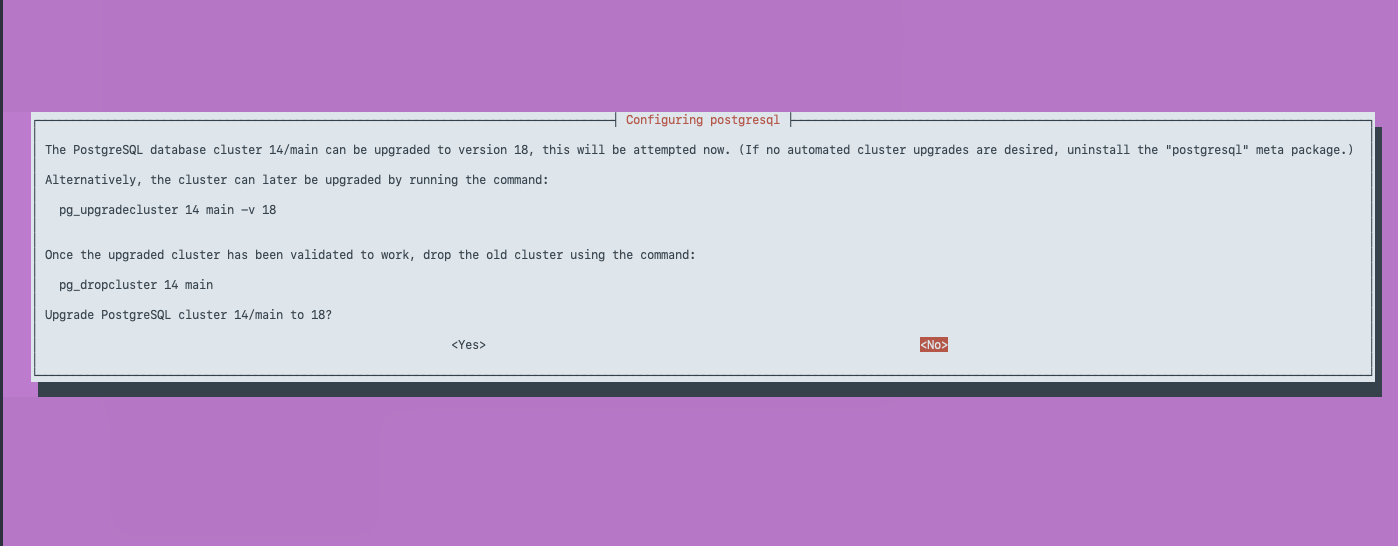
During the install, a Configuring postgresql screen asks whether to upgrade cluster 14/main to 18 now. Select <No> (use the Tab or arrow keys, then Enter). This screen may appear twice; select <No> both times. The upgrade is done in Step 6, after the Gateway services have been stopped.
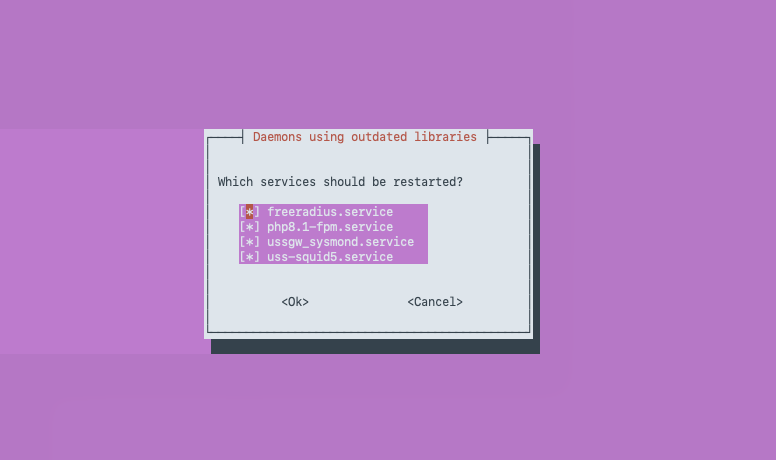
A Daemons using outdated libraries screen then lists freeradius, php8.1-fpm, ussgw_sysmond and uss-squid5. Leave them all ticked and select <Ok>.
Step 4: Check the USS Gateway package and database clusters
dpkg -s ussgateway | grep Status
pg_lsclusters
The first command must return Status: install ok installed. pg_lsclusters should show only the PostgreSQL 14 cluster:
Ver Cluster Port Status Owner    Data directory              Log file
14  main    5432 online postgres /var/lib/postgresql/14/main /var/log/postgresql/postgresql-14-main.log
If an empty 18 main cluster is also listed, remove it before continuing:
pg_dropcluster 18 main --stop
Step 5: Stop the USS Gateway services
Web filtering stops at this point.
systemctl stop uss-squid5 ussgw_sysmond freeradius php8.1-fpm nginx
sudo -u postgres psql -Atc "select count(*) from pg_stat_activity where datname='cloudgw'"
The count must be 0. If it is not, restart the services with systemctl start uss-squid5 ussgw_sysmond freeradius php8.1-fpm nginx and contact your Service Provider.
Step 6: Upgrade the database to PostgreSQL 18
pg_upgradecluster -v 18 14 main
pg_lsclusters
The upgrade prints a lot of output and should end with Success. Please check that the upgraded cluster works. PostgreSQL 18 now runs on port 5432, and PostgreSQL 14 is stopped on port 5433 with its data unchanged:
Ver Cluster Port Status Owner    Data directory              Log file
14  main    5433 down   postgres /var/lib/postgresql/14/main /var/log/postgresql/postgresql-14-main.log
18  main    5432 online postgres /var/lib/postgresql/18/main /var/log/postgresql/postgresql-18-main.log
Do not run pg_dropcluster 14 main yet, even though the output suggests it. PostgreSQL 14 is your rollback until the upgrade has been tested (see Step 9).
Step 7: Check the upgraded database
sudo -u postgres psql -Atc "select version()"
grep -vE '^\s*(#|$)' /etc/postgresql/18/main/pg_hba.conf
sudo -u postgres psql -d cloudgw -Atc "select count(*) from global_config"
tail -20 /var/log/postgresql/postgresql-18-main.log
- The version should start with
PostgreSQL 18. pg_hba.confshould contain these four lines, carried over from PostgreSQL 14:local all postgres trust
local all all trust
host all all 127.0.0.1/32 md5
host all all ::1/128 md5- The
global_configcount should be greater than 0. - The log should contain no
FATALorERRORlines.
Step 8: Reboot the USS Gateway
reboot
Verifying the Upgrade
Once the USS Gateway has restarted, log back in, switch to root and run:
pg_lsclusters
systemctl is-active postgresql@18-main uss-squid5 ussgw_sysmond freeradius php8.1-fpm nginx
sudo -u postgres psql -d cloudgw -Atc "select usename, count(*) from pg_stat_activity where datname='cloudgw' group by 1"
grep -E 'FATAL|ERROR' /var/log/postgresql/postgresql-18-main.log | tail
pg_lsclustersshows18 main 5432 onlineand14 main 5433 down.- All six services return
active. - The connection query returns
postgreswith one or more connections, showing the USS Gateway services have connected to PostgreSQL 18. The number varies with Gateway activity. - An
ERROR: cursor "clients" does not existline may appear each time the services start. This also occurs on PostgreSQL 14 and is not caused by the upgrade. Any otherERRORorFATALlines should be reported to your Service Provider.
Then test the USS Gateway itself:
- Browse through the Gateway and confirm a blocked site shows the block page.
- Confirm HTTPS sites are inspected (the TrustLayer certificate is shown).
- Log in to the local web UI, confirm your settings are present, and save a small change.
- If the USS Gateway is joined to Active Directory, browse as a domain user and confirm your username appears against your traffic in Activity Reports.
- If you use RADIUS accounting, confirm accounting records are still being received.
- Confirm your test browsing appears in Activity Reports.
Rolling Back to PostgreSQL 14
If the USS Gateway does not work correctly after the upgrade, and Step 9 has not been run, switch back to the untouched PostgreSQL 14 cluster:
systemctl stop uss-squid5 ussgw_sysmond freeradius php8.1-fpm nginx
pg_ctlcluster 18 main stop
pg_conftool 18 main set port 5433
pg_conftool 14 main set port 5432
echo manual > /etc/postgresql/18/main/start.conf
echo auto > /etc/postgresql/14/main/start.conf
pg_ctlcluster 14 main start
reboot
Alternatively, restore the VM snapshot taken before you started.
Step 9: Remove PostgreSQL 14 (once testing is complete)
First, check what will be removed without removing anything:
cd /tmp
apt-get -s purge postgresql-14 postgresql-client-14 | grep -E '^(Purg|Remv)'
The output should list only these two packages:
Purg postgresql-14 [14.25-1.pgdg22.04+1]
Purg postgresql-client-14 [14.24-0ubuntu0.22.04.1]
If ussgateway or postgresql is listed, stop and contact your Service Provider. Otherwise, remove the PostgreSQL 14 cluster and packages:
pg_dropcluster 14 main
apt-get purge postgresql-14 postgresql-client-14
Confirm only postgresql-14 and postgresql-client-14 are listed for removal, then answer Y.
A Configuring postgresql-14 screen asks "Remove PostgreSQL directories when package is purged?". Select <No>. The PostgreSQL 14 data has already been removed by pg_dropcluster, so nothing is lost.

Finally, confirm the USS Gateway is still running on PostgreSQL 18:
pg_lsclusters
dpkg -s ussgateway | grep Status
systemctl is-active postgresql@18-main uss-squid5 ussgw_sysmond freeradius php8.1-fpm nginx
pg_lsclusters should show only 18 main 5432 online, the package status should be install ok installed, and all six services should return active. An /etc/postgresql/14 folder may remain, containing a leftover postgresql.conf.tmp file from the original installation. It is not used and can be left in place, or removed with rm -rf /etc/postgresql/14.
Notes
- The upgrade uses
pg_upgradecluster, which dumps and restores the database into a new PostgreSQL 18 cluster and copies across the PostgreSQL 14 configuration. On the test Gateway thecloudgwdatabase was around 10 MB. - PostgreSQL 18 enables data page checksums on new clusters by default.
- The
postgresqlpackage the USS Gateway depends on now points to PostgreSQL 18 (from the PostgreSQL repository), so future PostgreSQL 18 updates arrive through normal package updates. - Reference: PostgreSQL: Linux downloads (Ubuntu)