WS - Deploying USS Mac Agent via Microsoft Intune
 Updated 1 month ago
by
admin
Updated 1 month ago
by
admin
IIntune Deployment: TrustLayer Root CA + USS Agent (macOS)
Step 1 — Deploy the TrustLayer Root CA via Intune
- Download the Root CA certificate from your TrustLayer tenant portal. The certificate will download as a
.pemfile. - You will need to convert the file from
.pemto.cerbefore uploading to Intune.
From a Mac — run in Terminal:
openssl x509 -inform PEM -in "Default MAC Agent Profile.pem" -outform DER -out TrustLayer.cer
From Windows — run in PowerShell:
$pem = Get-Content "Default MAC Agent Profile.pem" -Raw
$pem = $pem -replace "-----BEGIN CERTIFICATE-----", "" -replace "-----END CERTIFICATE-----", "" -replace "\s", ""
[System.IO.File]::WriteAllBytes("TrustLayer.cer", [System.Convert]::FromBase64String($pem))
.pem certificate.- In Intune → Devices → macOS → Configuration → Create → New policy:
- Platform: macOS
- Profile type: Templates → Trusted certificate
- Click Create.
- Give it a name — e.g.
USS Agent CA deployment for MacOS. - Upload the converted
TrustLayer.cerfile.
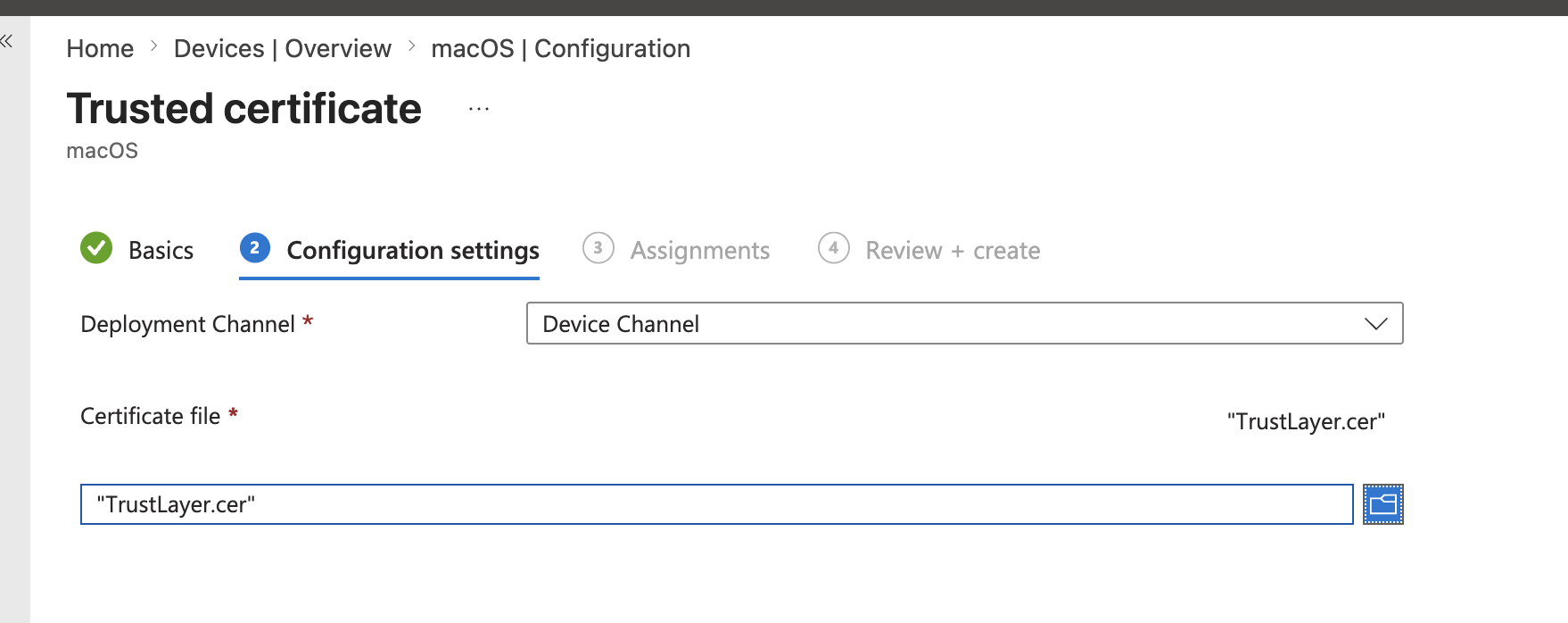
- Assign to your target device/user group.
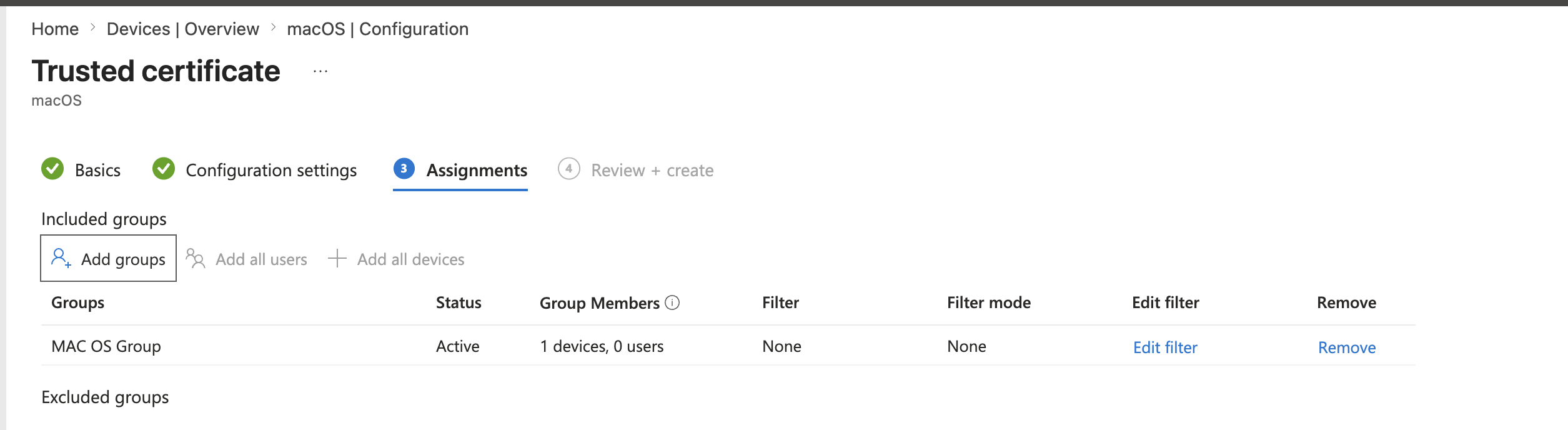
- Set this profile to deploy before the agent script (you can enforce ordering via assignment filters or just allow time for it to apply — typically 15 min).
Deploy the USS Agent via Intune Shell Script
Prerequisites
- The Mac must be enrolled in Intune via Company Portal.
- The TrustLayer Root CA profile from Step 1 must be applied before running this script.
Create the Shell Script
- Copy the script below into a text editor, update the
AGENT_EMAILandAGENT_PASSvalues with your USS admin account credentials, and save it asinstall_uss_agent.sh.Note: TheAGENT_EMAILandAGENT_PASSare the credentials of a USS administrator account with Mac OS X - Agent - Provisioning permissions. It is best practice to create a dedicated provisioning account in the USS dashboard with a limited role containing only this permission.#!/bin/bash
The script performs the following steps automatically:
# -------------------------------------------------------
# USS Agent Install Script for macOS - Intune Deployment
# Update AGENT_EMAIL and AGENT_PASS before uploading
# -------------------------------------------------------
AGENT_EMAIL="your@email.com" # Replace with your USS admin account email
AGENT_PASS="yourpassword" # Replace with your USS admin account password
DMG_URL="https://downloads.clouduss.com/macosx/4.4.5.8193/UssAgent%204.4.5.8193.dmg"
DMG_PATH="/tmp/UssAgent.dmg"
MOUNT_POINT="/tmp/UssAgentMount"
LOG="/Library/Logs/UssAgentInstall.log"
exec >> "$LOG" 2>&1
echo "=== USS Agent Install Started: $(date) ==="
echo "Downloading USS Agent DMG..."
curl -L --retry 3 --retry-delay 5 -o "$DMG_PATH" "$DMG_URL"
echo "Mounting DMG..."
mkdir -p "$MOUNT_POINT"
hdiutil attach "$DMG_PATH" -mountpoint "$MOUNT_POINT" -nobrowse -quiet
INSTALLER="$MOUNT_POINT/UssAgent Installer.app/Contents/MacOS/UssAgent Installer"
if [ ! -f "$INSTALLER" ]; then
echo "ERROR: Installer not found at expected path."
hdiutil detach "$MOUNT_POINT" -quiet || true
exit 1
fi
echo "Running USS Agent installer..."
"$INSTALLER" -q -u "$AGENT_EMAIL" -p "$AGENT_PASS"
INSTALL_EXIT=$?
echo "Cleaning up..."
hdiutil detach "$MOUNT_POINT" -quiet || true
rm -f "$DMG_PATH"
if [ $INSTALL_EXIT -eq 0 ]; then
echo "=== USS Agent Install SUCCEEDED: $(date) ==="
else
echo "=== USS Agent Install FAILED (exit code: $INSTALL_EXIT): $(date) ==="
exit $INSTALL_EXIT
fi- Downloads the USS Agent DMG from CloudUSS
- Mounts the DMG
- Runs the installer silently with the provided credentials
- Cleans up temporary files
- Logs output to
/Library/Logs/UssAgentInstall.log
- In Intune → Devices → macOS → Shell scripts → Add.
- Give it a name — e.g.
USS Mac Agent Deployment.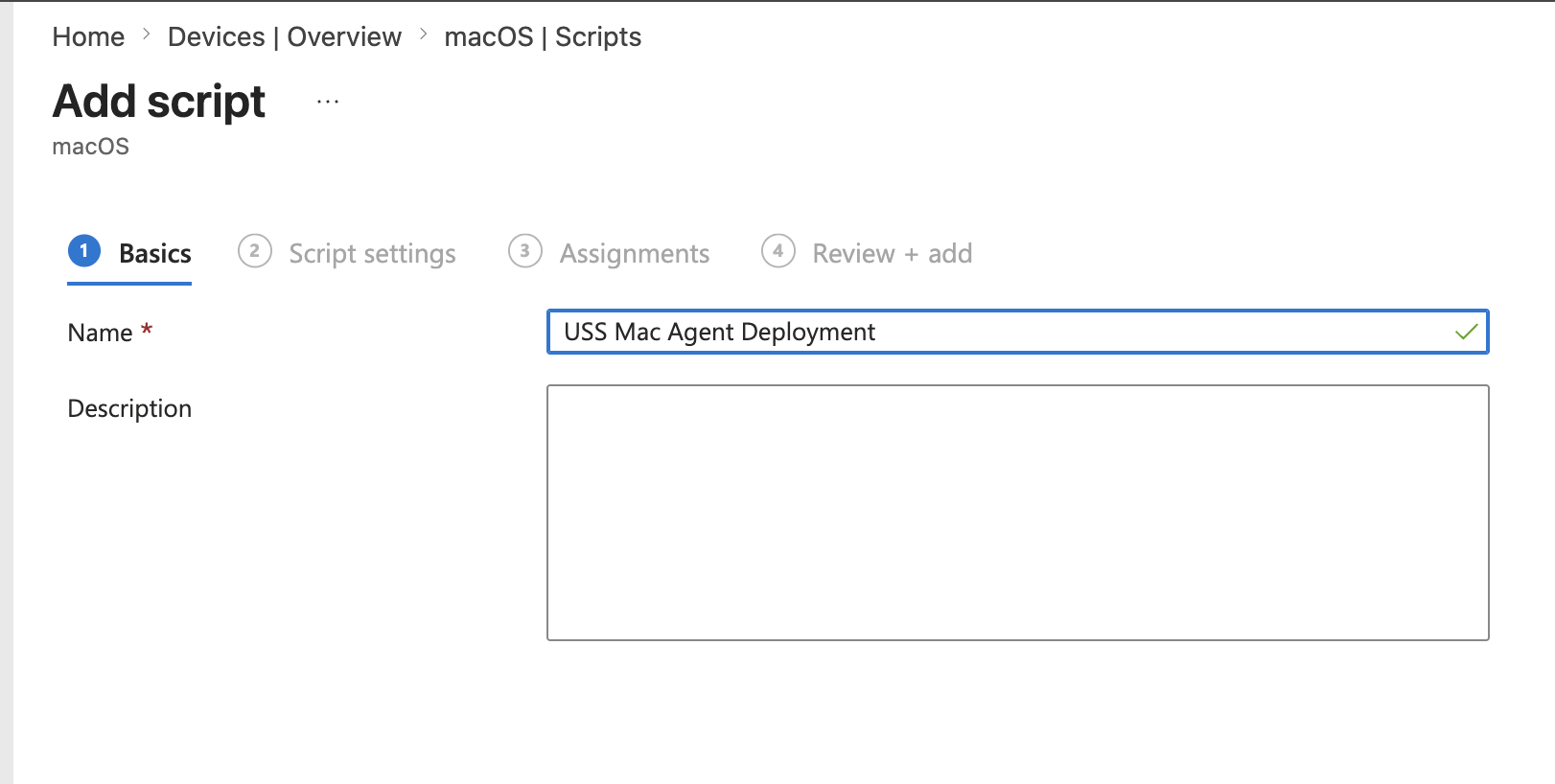
- Upload the
install_uss_agent.shscript file.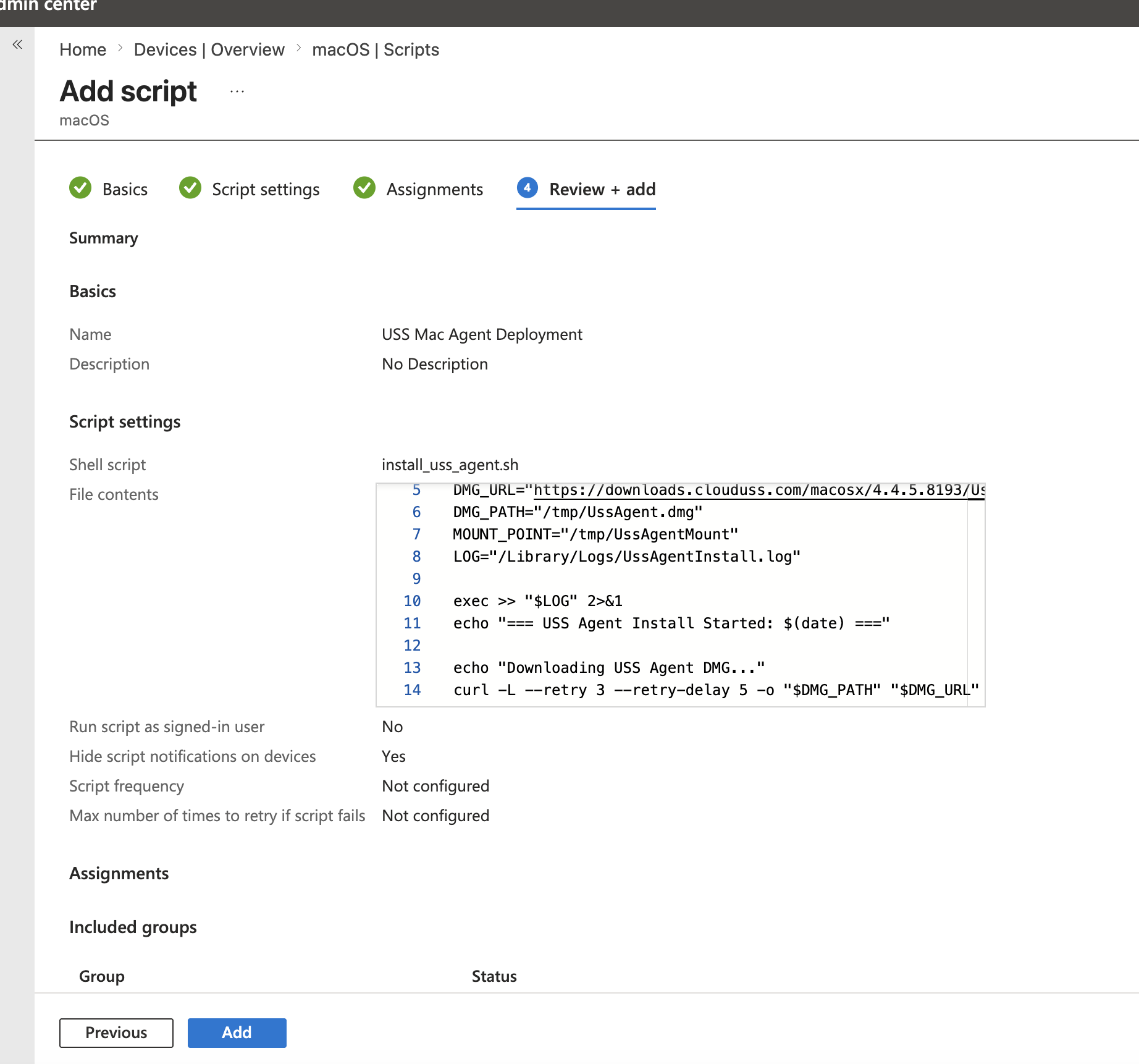
- Configure the following settings:
Setting
Value
Run script as signed-in user
No
Hide script notifications on devices
Yes
Script frequency
Not configured
Max number of times to retry if script fails
3
- Click Next and assign to your target device/user group — e.g.
MAC OS Group.
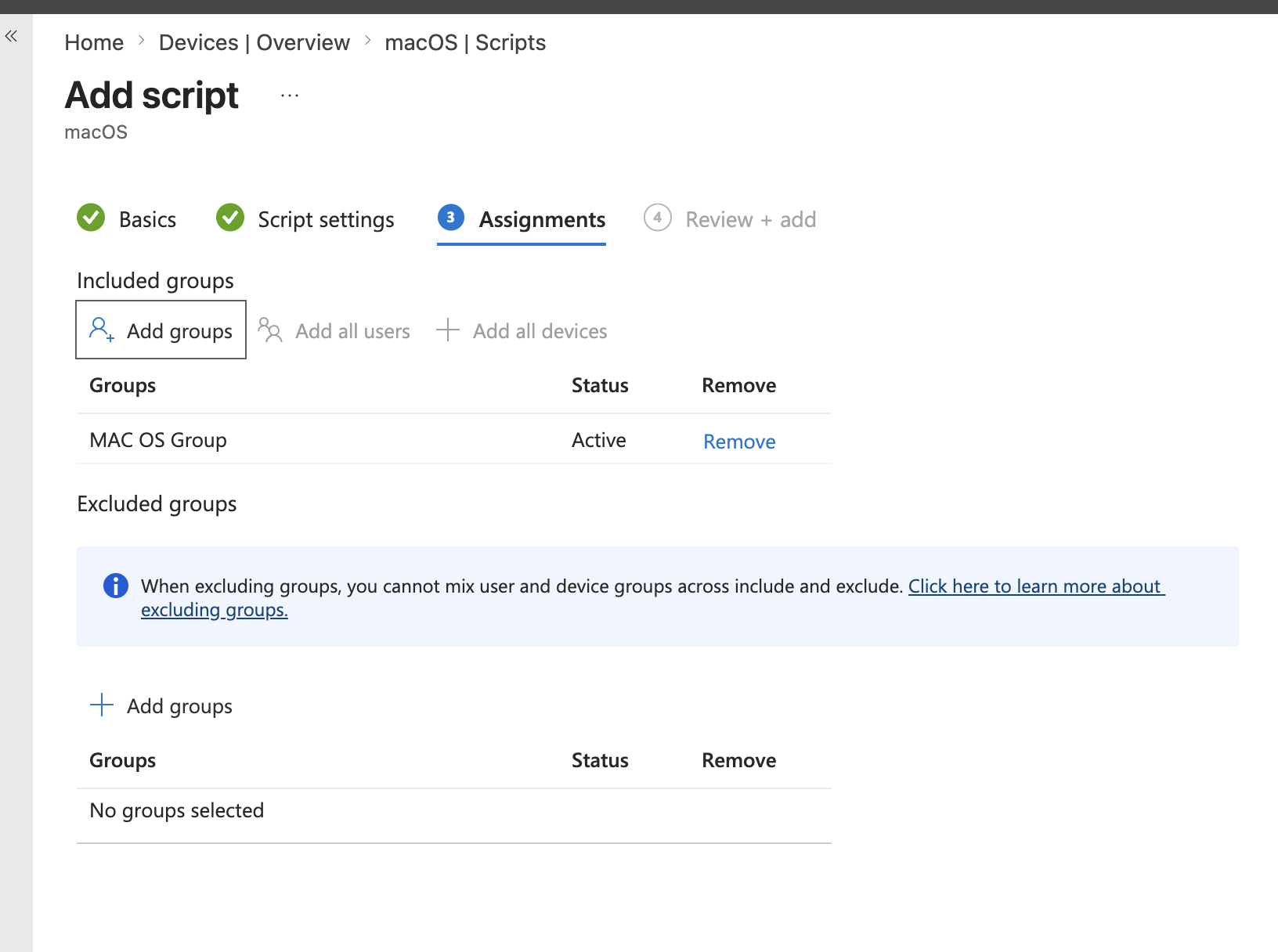
- Click Review + create to save.
Trigger the Script
After saving, the script will run automatically within approximately 15–30 minutes. To speed this up:
- On the Mac, open Company Portal → Help → Sync.
- Wait a few minutes, then check the status in Intune → Devices → macOS → Shell scripts → [script name] → Device status.
Verify Installation
To confirm the agent is installed and running, open a browser on the Mac and attempt to visit a blocked category site. You should see the TrustLayer Access Blocked page.
You can also check the install log on the Mac via Terminal:
cat /Library/Logs/UssAgentInstall.log
Note: The USS Agent runs as a background service — it will not appear as a visible app in the Applications folder. This is expected behaviour.
Step 3 — Uninstalling the USS Agent via Intune (When Required)
To uninstall the agent from a device, a separate uninstall script is used.
- Copy the script below into a text editor, update the
UNINSTALL_PASSvalue with the tamper-proof password from your Agent Configuration Profile, and save it asuninstall_uss_agent.sh.Important: TheUNINSTALL_PASSis the tamper-proof password set in the Agent Configuration Profile in the USS dashboard — it is unique per customer and is separate from the USS admin account credentials used during installation. Ensure you update this value before deploying.#!/bin/bash
# -------------------------------------------------------
# USS Agent Uninstall Script for macOS - Intune Deployment
# Update UNINSTALL_PASS before uploading
# -------------------------------------------------------
# The uninstall password is the tamper-proof admin password set in the
# Agent Configuration Profile in the USS dashboard. It is unique per customer.
UNINSTALL_PASS="yourpassword" # Replace with your tamper-proof admin password
DMG_URL="https://downloads.clouduss.com/macosx/4.4.5.8193/UssAgent%204.4.5.8193.dmg"
DMG_PATH="/tmp/UssAgent.dmg"
MOUNT_POINT="/tmp/UssAgentMount"
LOG="/Library/Logs/UssAgentUninstall.log"
exec >> "$LOG" 2>&1
echo "=== USS Agent Uninstall Started: $(date) ==="
hdiutil detach "$MOUNT_POINT" -force 2>/dev/null || true
echo "Downloading USS Agent DMG..."
curl -L --retry 3 --retry-delay 5 -o "$DMG_PATH" "$DMG_URL"
echo "Mounting DMG..."
mkdir -p "$MOUNT_POINT"
hdiutil attach "$DMG_PATH" -mountpoint "$MOUNT_POINT" -nobrowse -quiet
UNINSTALLER="$MOUNT_POINT/UssAgent Uninstaller.app/Contents/MacOS/UssAgent Uninstaller"
if [ ! -f "$UNINSTALLER" ]; then
echo "ERROR: Uninstaller not found at expected path."
hdiutil detach "$MOUNT_POINT" -quiet || true
exit 1
fi
echo "Running USS Agent uninstaller..."
"$UNINSTALLER" -s -a "$UNINSTALL_PASS"
UNINSTALL_EXIT=$?
echo "Cleaning up..."
hdiutil detach "$MOUNT_POINT" -quiet || true
rm -f "$DMG_PATH"
if [ $UNINSTALL_EXIT -eq 0 ]; then
echo "=== USS Agent Uninstall SUCCEEDED: $(date) ==="
else
echo "=== USS Agent Uninstall FAILED (exit code: $UNINSTALL_EXIT): $(date) ==="
exit $UNINSTALL_EXIT
fi - In Intune → Devices → macOS → Shell scripts → Add.
- Give it a name — e.g.
USS Mac Agent Uninstall.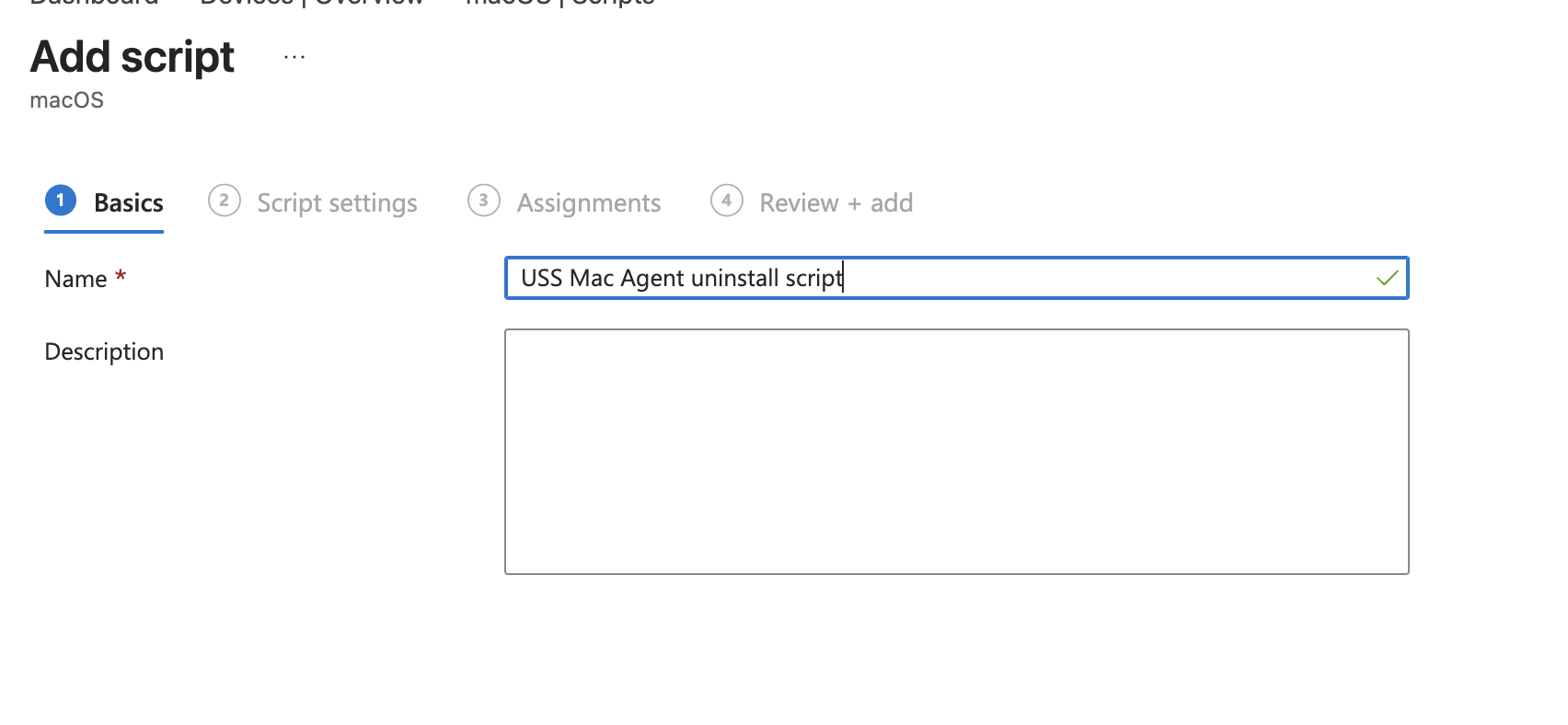
- Upload the
uninstall_uss_agent.shscript file.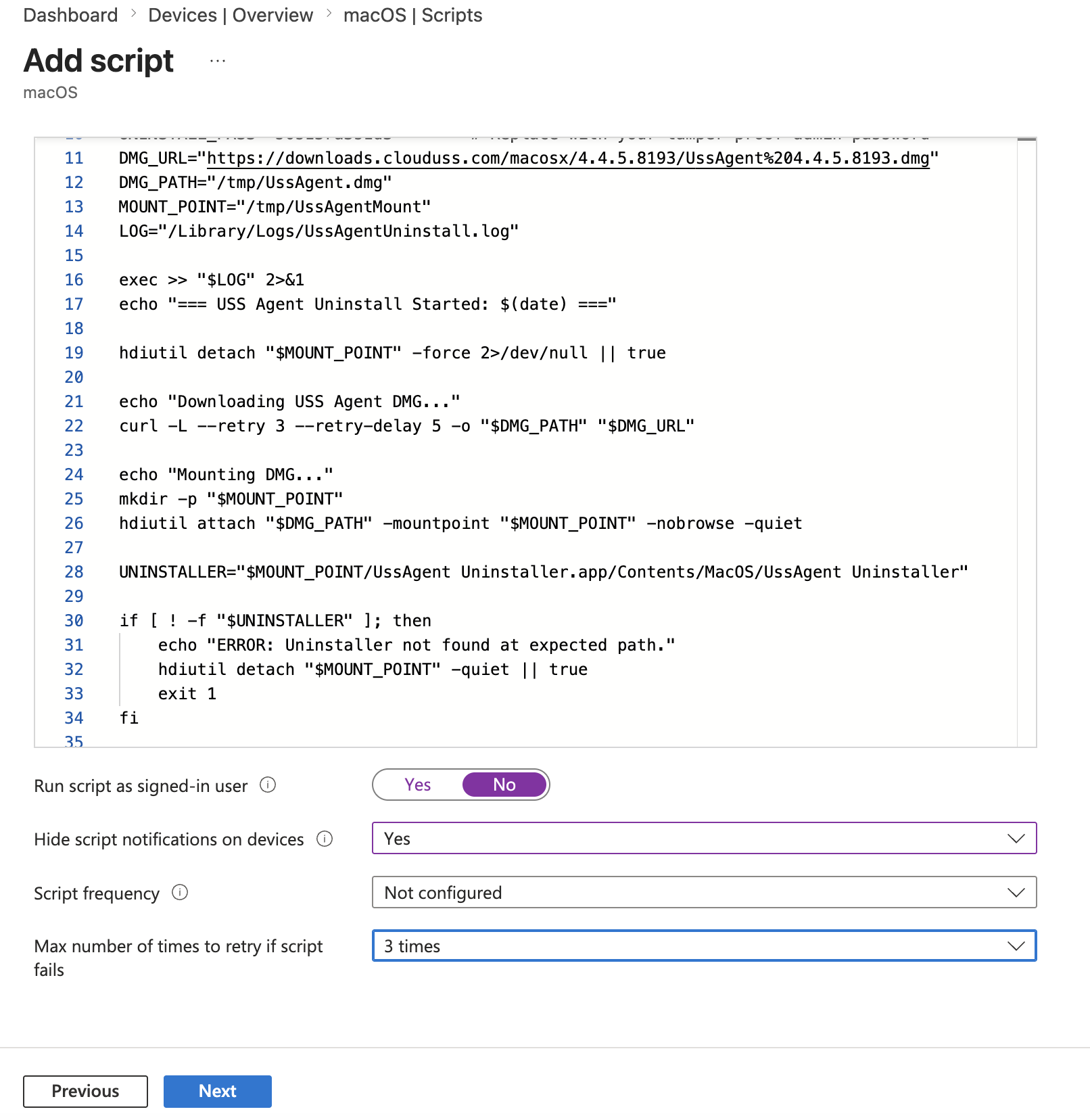
- Configure the following settings:
Setting
Value
Run script as signed-in user
No
Hide script notifications on devices
Yes
Script frequency
Not configured
Max number of times to retry if script fails
3
- Assign only to the device(s) you wish to uninstall from.
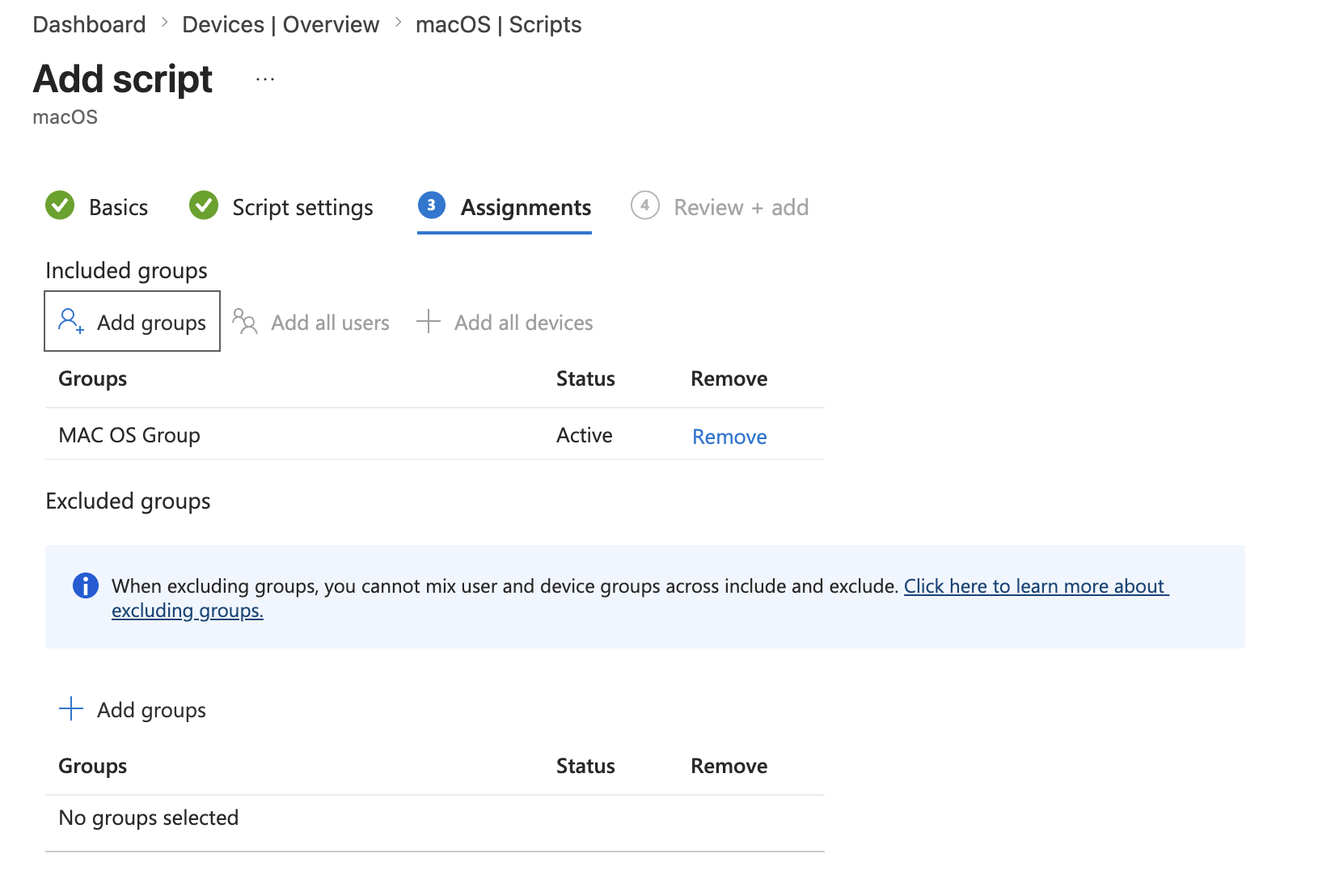
- Click Review + create to save.
Note: Do not assign the uninstall script to the same group as the install script, or both will run on the same devices.
Troubleshooting
Issue | Resolution |
Certificate profile shows 0 devices | Check the device/user is a member of the assigned group in Entra ID |
Script shows 0 devices in Device status | Ensure the device is in the assigned group; force a sync via Company Portal |
Install log does not appear after 30 minutes | Check group assignment; try forcing sync via Company Portal |
TrustLayer block page not appearing | Verify the install log shows SUCCEEDED; check the USS dashboard for the registered device |
Uninstaller prompts for password | Ensure the |