WS - How portal mode works on the USS Gateway
 Updated 2 months ago
by
admin
Updated 2 months ago
by
admin
USS Gateway — Captive and Guest Portal modes
The USS Gateway supports two transparent proxy portal modes: Captive portal and Guest portal. Both operate in Layer 3 transparent mode and are designed to handle devices that cannot have the USS Agent installed — such as personal smartphones, tablets, and visitor laptops.
How transparent mode works
In both portal modes, the USS Gateway operates as a Layer 3 transparent proxy. Rather than requiring any configuration on the client device, traffic is intercepted at the network level based on routing.
The key mechanism is DHCP. The client device must receive the IP address of the USS Gateway as its default gateway via DHCP. When the device makes an HTTP or HTTPS request, the gateway intercepts it before it reaches the internet and presents either a login page (Captive) or a Terms of Service splash page (Guest).
Once the user has authenticated or accepted the terms, their requests are forwarded through the USS Cloud Web Security service for filtering, in the same way as agent-based traffic.
Prerequisites — both modes
The following must be in place before either portal mode will work.
- USS Gateway deployed and registered. The gateway must be installed (as a virtual machine on VMware or Hyper-V), registered with your USS tenant, and assigned a Gateway agent configuration profile. The gateway must have outbound connectivity to the USS Cloud Web Security service on ports
1344/1345or80/443. - Layer 3 network routing. The USS Gateway must be positioned in the network so that it can intercept traffic from the BYOD or guest subnet. Client devices must route their traffic through the gateway, which means the gateway needs to be the next hop for that subnet.
- DHCP configuration. Your DHCP server must be configured to issue the IP address of the USS Gateway as the default gateway for the relevant subnet or VLAN. This is what causes client devices to route traffic through the gateway rather than your normal router. The client device must obtain a new DHCP lease after this change — simply reconnecting to the Wi-Fi network is usually sufficient.
- Portal enabled in the agent configuration profile. In the USS Dashboard, navigate to Security Modules → Web Security → Agent Configuration, select the gateway's profile, and enable either the Captive Portal or Guest Portal option. Configuration changes can take up to 15 minutes to propagate.
- Web Security filter rules. Web Security rules should be in place before enabling either portal. Traffic passing through the portal is subject to the same filter rules as agent traffic, so ensure appropriate policies exist for BYOD or guest users. The Tag Captive/Guest Portal requests with field in the gateway profile lets you apply a specific TAG to portal traffic, which can then be used to target portal users in filter rules separately from corporate device traffic.
Captive Portal (Authenticated)
What it is
The Captive portal is designed for BYOD scenarios — devices owned by employees that the IT department cannot install or manage software. It requires the user to authenticate using a valid Active Directory username and password before internet access is granted. This allows user-based filtering policies to be applied and captures the username in activity reports, so browsing is attributable to individuals rather than just IP addresses.
Additional prerequisites
- Active Directory access. The USS Gateway must be able to reach your Active Directory environment to validate credentials. The gateway needs to be joined to the domain or have LDAP access to the domain controller. This is configured under the Authentication & Identification section of the USS Gateway's own web interface (not the USS Dashboard).
- AD credentials for users. Users must have valid Active Directory accounts. The login page accepts their standard domain username and password.
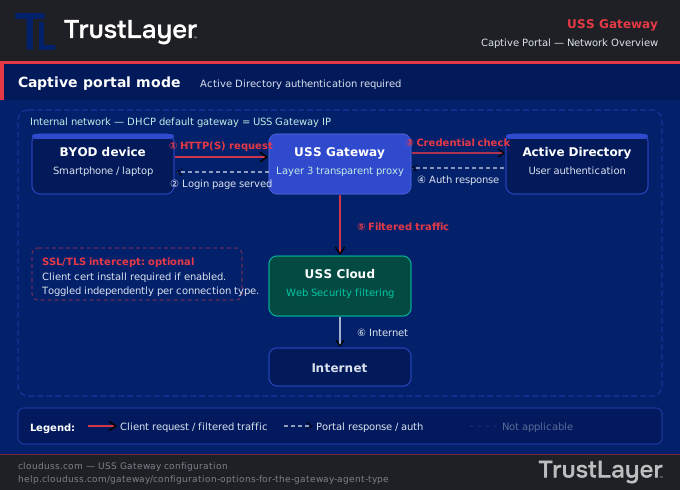
Captive Portal Topology
How it works — step by step
- The client device connects to the Wi-Fi network and obtains a DHCP lease with the USS Gateway as its default gateway.
- The device makes an HTTP or HTTPS request (any website).
- The USS Gateway intercepts the request before it leaves the network.
- The gateway presents a login page in the user's browser. The page can be customised with your logo, title, welcome text, an acceptance checkbox, and a Terms of Service link.
- The user enters their Active Directory username and password.
- The gateway validates the credentials against Active Directory.
- On successful authentication, the original request is allowed through, and the session is established.
- Subsequent requests from that device are forwarded to the USS Cloud Web Security service for filtering according to the relevant filter rules.
- The authenticated username is captured in Web Security activity reports.
SSL/TLS interception in Captive portal mode
SSL/TLS interception for transparent proxy connections is controlled separately from direct proxy connections. You can enable it in the agent configuration profile under TLS/SSL Intercept on transparent proxy (Captive/Guest Portal) connections.
If SSL/TLS interception is enabled, the USS Gateway root CA certificate must be installed on the client device. The certificate can be installed by clicking the "install this certificate" link presented on the captive portal page itself, or distributed to managed devices via MDM before they connect.
If SSL/TLS interception is disabled, HTTPS traffic will still be filtered and logged at the domain level, but the gateway cannot inspect the content of encrypted connections. Without interception, HTTPS sites will not function correctly until a portal session has been established — the device must disconnect and reconnect to the Wi-Fi network after the DHCP gateway change to trigger the initial portal intercept.
Ports used: The Captive portal listens on port 3128 (HTTP) and port 3129 (HTTPS) by default. These can be changed in the Advanced section of the agent configuration profile.
Guest Portal (Unauthenticated)
What it is
The Guest portal is designed for public or anonymous access scenarios — visitors, conference attendees, or any user where credentials cannot be expected, and identity does not need to be captured. Instead of a login page, users are presented with a Terms of Service splash screen. They must accept the terms before internet access is granted. No Active Directory is required, and no username is captured in reporting.
Additional prerequisites
No Active Directory requirement. The Guest portal has no dependency on Active Directory. No domain join or LDAP configuration is needed on the gateway.
Terms of Service content. The splash page title and welcome text can be customised. The logo, acceptance checkbox text, and Terms of Service link are inherited from the Captive portal settings, so the Captive portal settings must be configured even if only the Guest portal is in use.
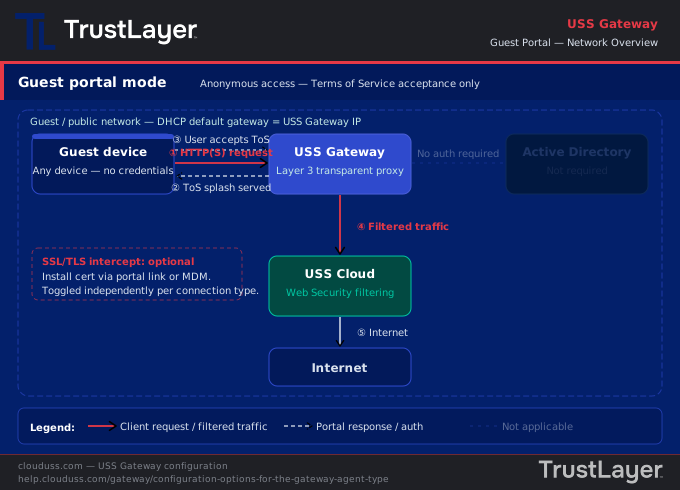
Guest Portal Topology
How it works — step by step
- The client device connects to the guest Wi-Fi network and obtains a DHCP lease with the USS Gateway as its default gateway.
- The device makes an HTTP or HTTPS request (any website). Mobile devices running Android, iOS, and Windows will often detect the captive network automatically and launch a browser to the portal.
- The USS Gateway intercepts the request.
- The gateway presents a Terms of Service splash page in the user's browser.
- The user reads and accepts the terms by ticking the acceptance checkbox and clicking through.
- The session is established and the original request is allowed through.
- Subsequent requests are forwarded to USS Cloud Web Security for filtering according to the relevant guest filter rules.
- Activity is logged against the device IP address — no username is captured.
SSL/TLS interception in Guest portal mode
The same SSL/TLS interception settings apply as in Captive portal mode. If interception is enabled, the gateway CA certificate must be installed on the guest device. The portal page includes an "install this certificate" link for this purpose. Distributing the certificate via MDM is also an option for managed guest devices.
For truly anonymous public access where guests cannot be expected to install a certificate, consider leaving SSL/TLS interception disabled for portal connections. Domain-level filtering and logging will still apply to HTTPS traffic.
Choosing between Captive and Guest portal
Captive portal | Guest portal | |
User type | Employees with BYOD devices | Visitors or anonymous users |
Authentication | Active Directory credentials required | Terms of Service acceptance only |
Identity in reports | Username captured | IP address only |
AD dependency | Yes — domain access required | No |
User-based policy | Yes — filter rules can target by user or group | No — policy applies to all guest traffic |
Certificate install | Required if SSL/TLS intercept enabled | Required if SSL/TLS intercept enabled |
Important notes
- Only one portal mode can be active per USS Gateway at a time. If you need both simultaneously (for example, a BYOD VLAN and a separate guest VLAN), you will need a separate USS Gateway instance for each.
- Configuration profile changes can take up to 15 minutes to propagate to the gateway. You can force an update using the Update Config option in the gateway web interface.
- Changes that require a gateway restart (such as enabling fail-open behaviour) will briefly interrupt web traffic. Apply these out of hours where possible.
- Android, iOS, and Windows devices will typically detect a captive network automatically and present a browser prompt when connecting to Wi-Fi, which helps surface the portal page without the user needing to open a browser manually.
- If a client device is moved from one subnet to another or its gateway IP changes, it must disconnect and reconnect to obtain a new DHCP lease and trigger the portal session correctly.